

Viewing previous tests
The Test History screen allows you to view previous tests that have been carried out on this device. Five tests will be displayed per page and you can move between pages using the page numbers and navigation links at the bottom of the screen.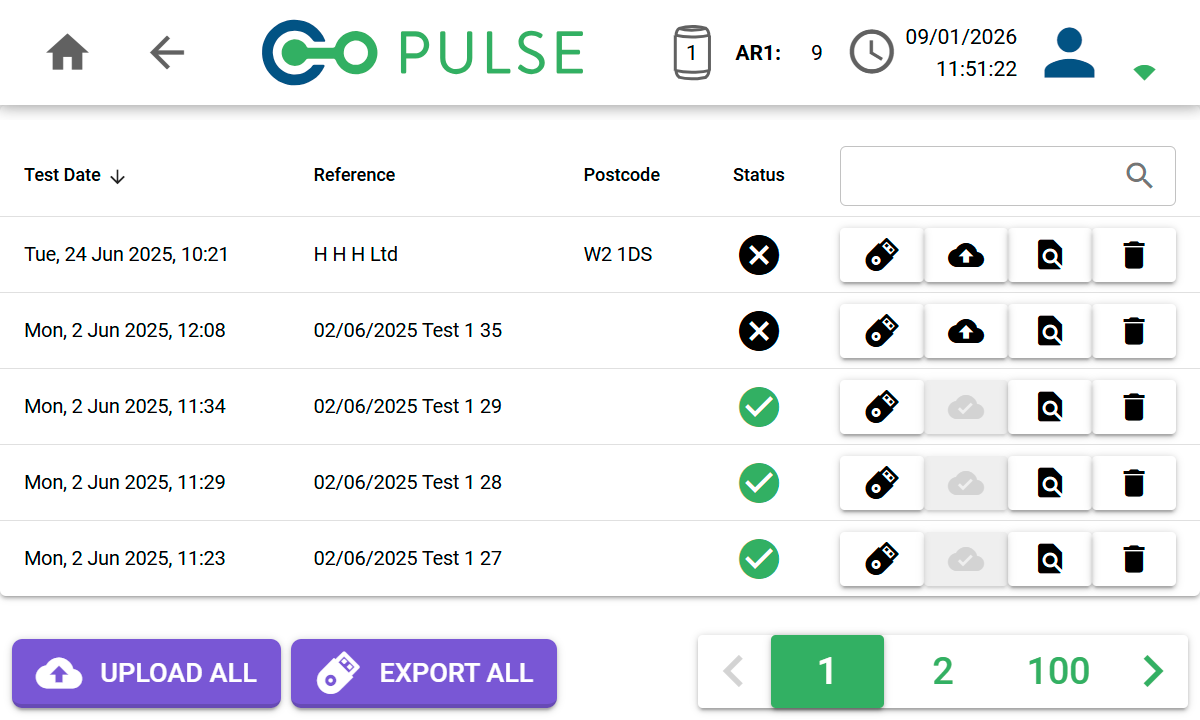 Each test has a number of options available to manage it:
| Icon | Description |
|---|---|
 | Export buttonExport this test to USB.Only visible when a compatible USB flash drive is plugged in. |
 | Cloud Upload buttonUpload this test to the cloud.Only enabled when connected to Wi-Fi and signed in as an online user. |
 | Cloud Upload Success iconIndicates that this test has already been uploaded to the cloud. |
 | View Test buttonView the test result and air flow/pressure charts. |
 | Delete buttonDelete this test by moving it to the recycle bin. |
Searching for a test
The search box allows you to search all previous tests by either the test reference or property postcode. Matching tests will be displayed on screen.Uploading all tests to the cloud
Any tests that have not already been uploaded to the cloud can be uploaded by clicking the Upload all button. The process may take some time depending on the number of tests that have to be uploaded.The cloud upload functionality will only be enabled when connected to Wi-Fi
and signed in as an online user.
Exporting all tests to USB
All tests can be exported to USB by clicking the Export all button. This will export each test as a PAT file to the root of the USB flash drive.The export to USB functionality will only be enabled when a compatible USB
flash drive is plugged in to the data socket on top of the controller.