

Selecting an account
After you have successfully logged in, you will be taken to the account selection page which will show a list of accounts to which you have access. Accounts are a way of grouping tests together and allows other users with access to the same account to view and manage the same tests. The accounts displayed here are identical to those listed on the Login screen of your Pulse controller. Select which account you would like to use if you have access to more than one account.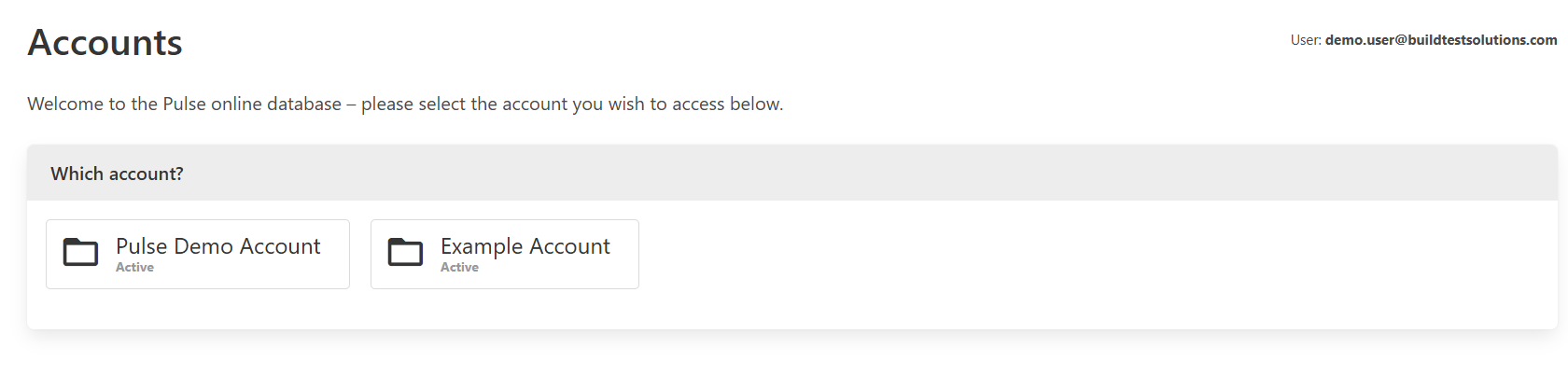
List tests page
Once an account has been selected, you will be presented with a list of Pulse tests that belong to that account.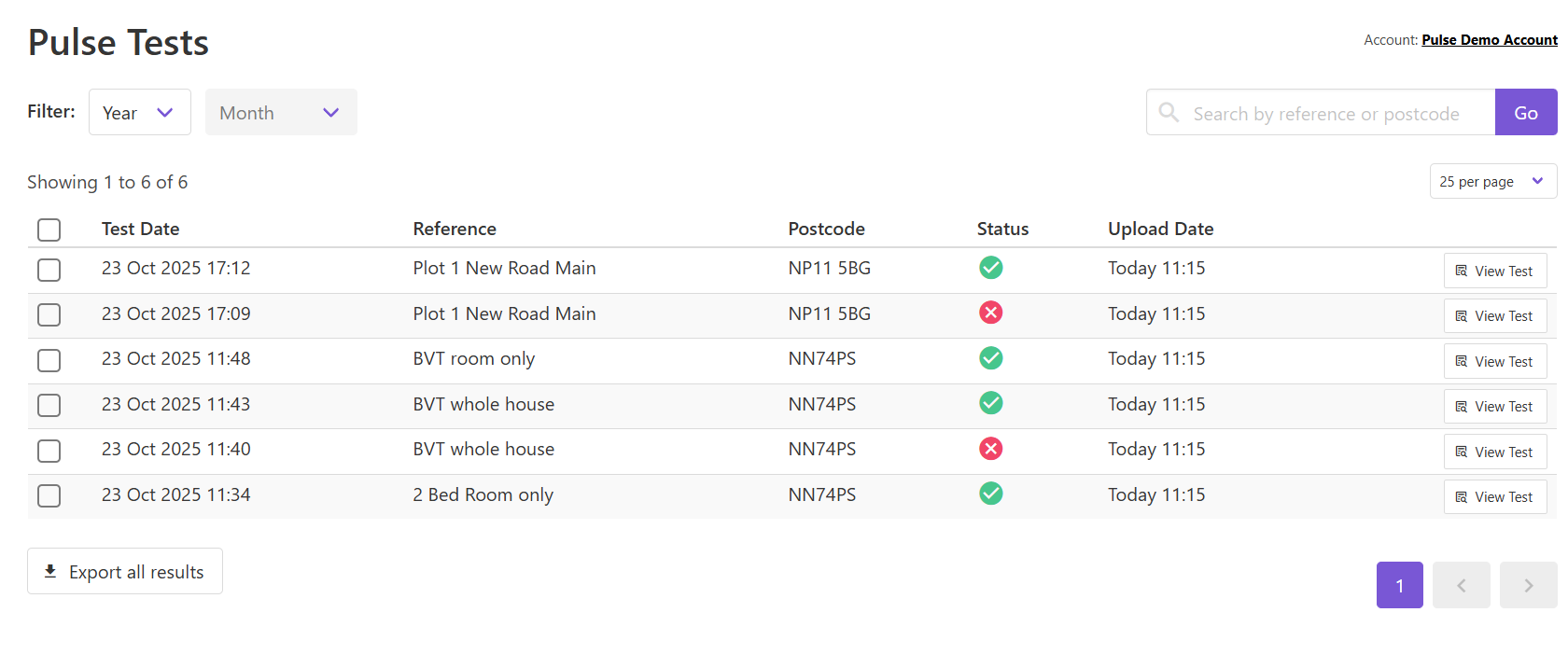
Filtering by test date
If you are looking for a previous test that was performed, it is possible to filter the list by the month/year of the test date. Use the dropdown selection list in the top left corner of the page to select a year and/or month to filter the list by.Searching by reference or postcode
Use the search box in the top right corner of the page to find Pulse tests that match either a test reference or postcode. The list of tests will be updated to display only tests that match the search query that you specified.Sorting test results
The table of results supports the ability to sort each of the displayed columns. Click the column heading to sort by that particular column.Exporting test results
The list of Pulse tests can be exported to CSV by clicking the Export all results button at the bottom of the page.Exporting only some results
To export only certain tests to CSV, check the tick box against each test result that you want to export and click the Export button.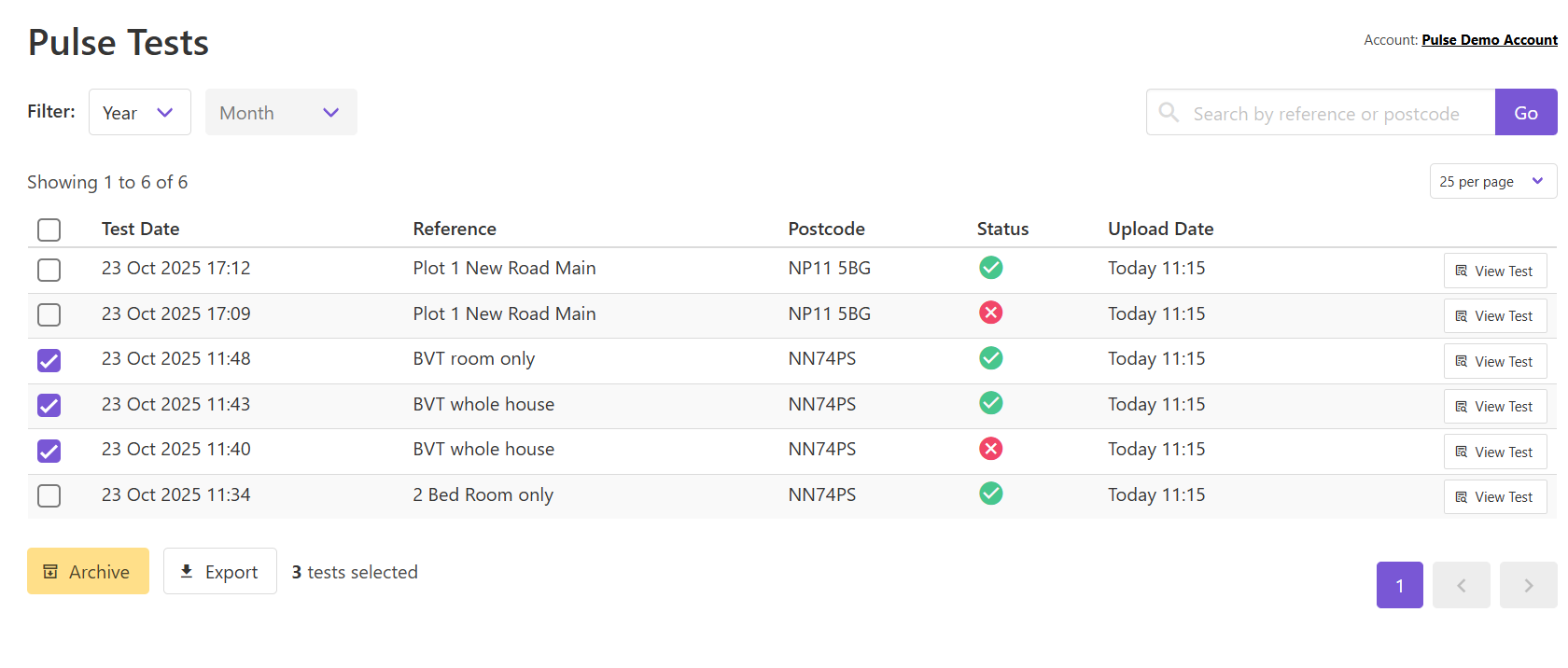
Archiving test results
For air testers carrying out many tests each day, your list of tests can become very long. It is possible to archive older tests so they don’t appear in your main list of tests. Archived tests will be moved to a separate Archived Tests page. To archive tests, check the tick box against each test result that you want to archive and click the Archive button.Deleting test results
It is also possible to delete tests completely. Tests must be archived first so that they are moved to the Archived Tests page. On the Archived Tests page, check the tick box against each test result that you want to delete and click the Delete button.Tests will be deleted permanently from your account, and it will not be possible to restore them or view the test data.