

Results tab
The Results tab shows an overview of the test result including when the test took place, who carried out the test and the outcome status. The actual measured airtightness result is presented at 4Pa for each of the results metrics. Additionally, the result is also presented at a pressure difference of 50 Pa by extrapolating it using a conversion factor.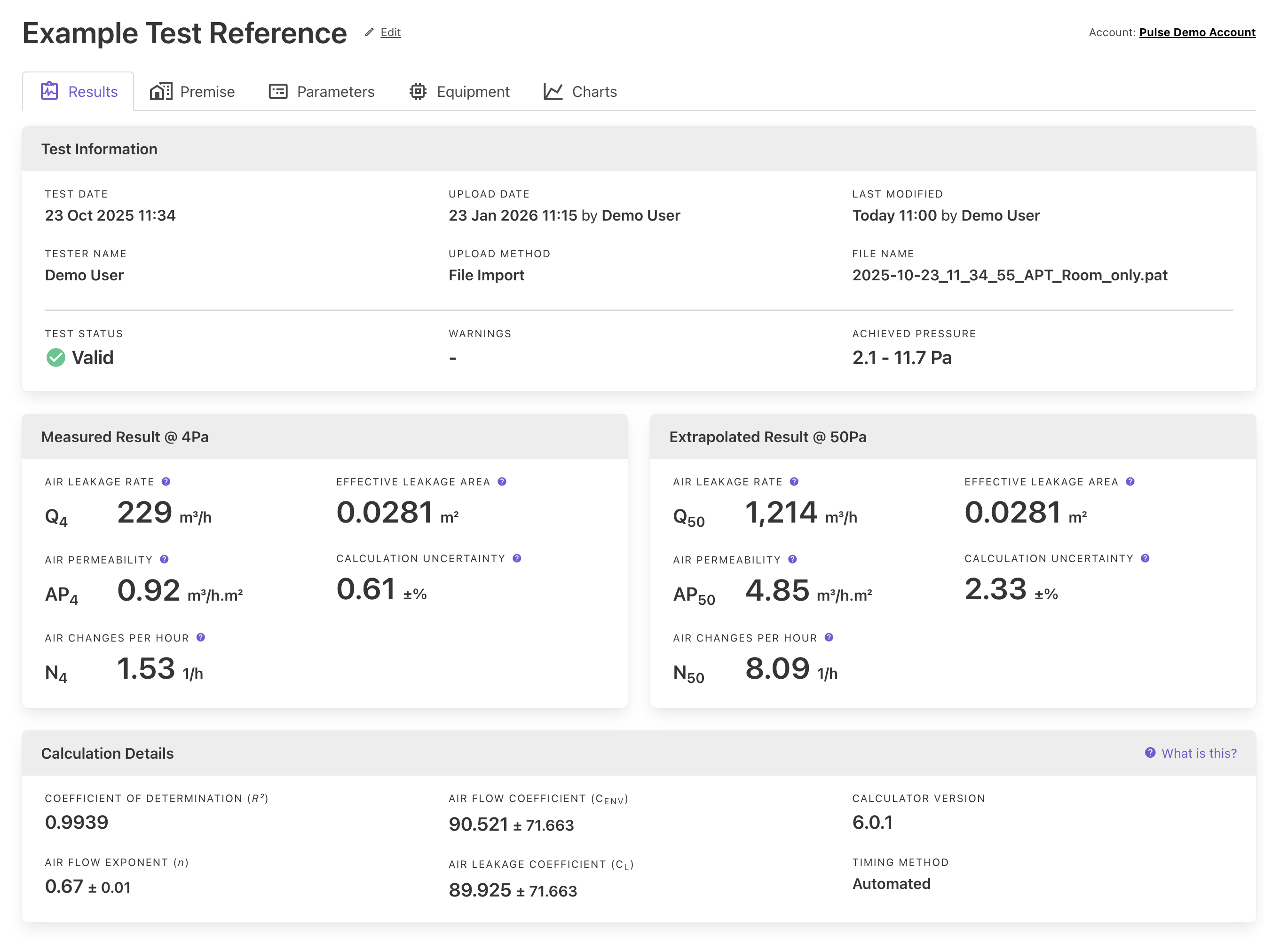
Editing test context
The Results tab also contains contextual information about the test and why it was performed. This allows you to define the test type as well as other important information required for reporting or auditing purposes. Whilst the contextual information has no bearing on the test result, it does add richness to the data and provides a valuable reminder for yourself in the future.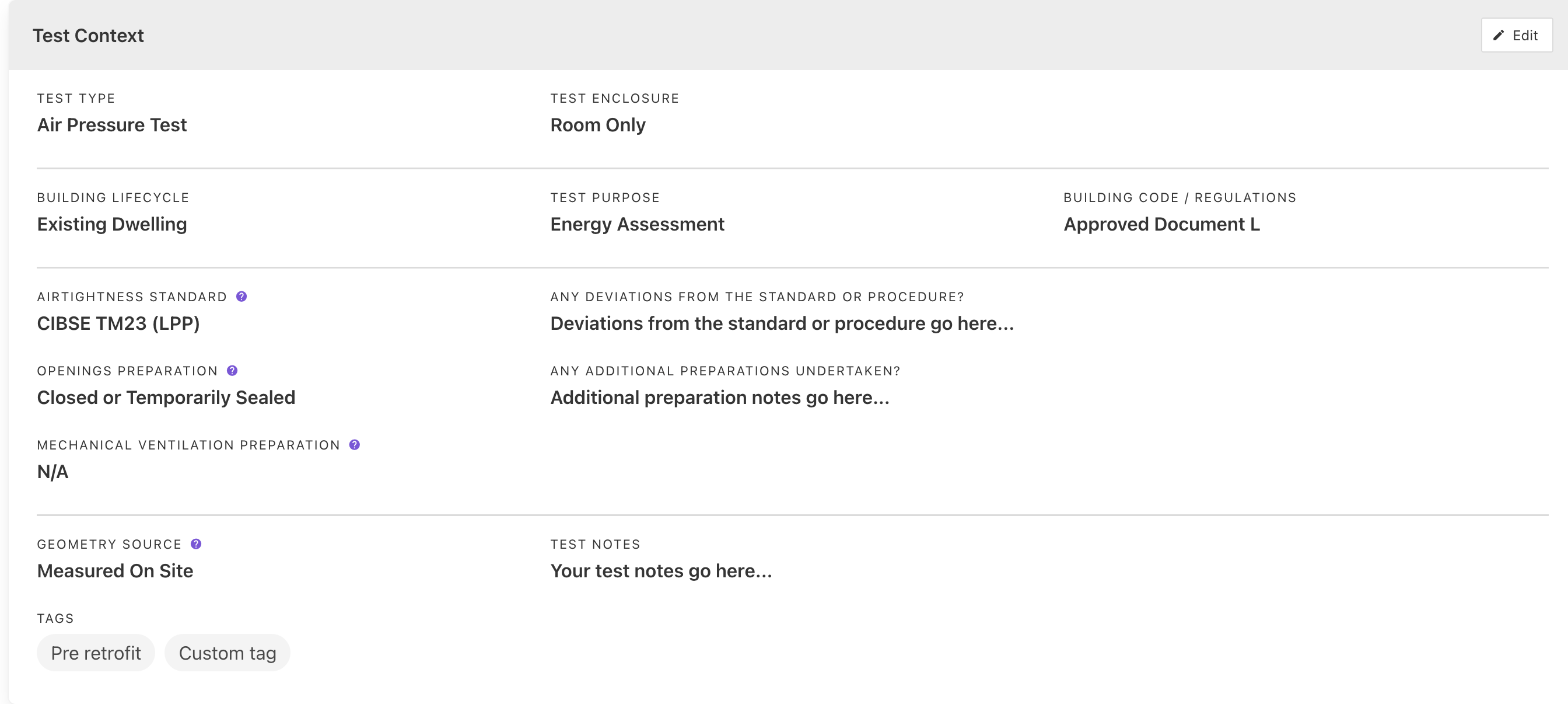 The Test Context can be amended by clicking the Edit button in the top right corner of the panel.
Once you have made changes, remember to click the Save button to update the test record.
The Test Context can be amended by clicking the Edit button in the top right corner of the panel.
Once you have made changes, remember to click the Save button to update the test record.
Premise tab
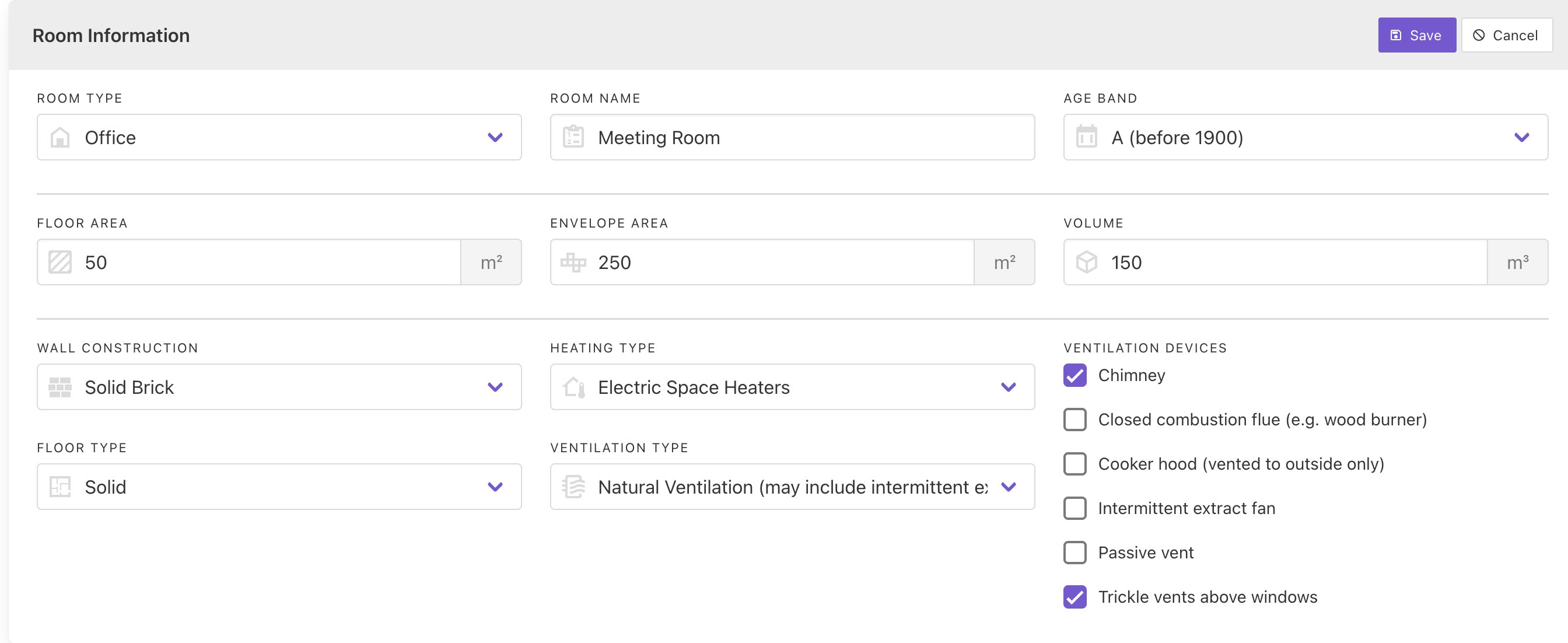
The Premise tab contains the location of the property that was being tested as well as information about the building in question. If this was an individual room test only, you will also have access to the room information.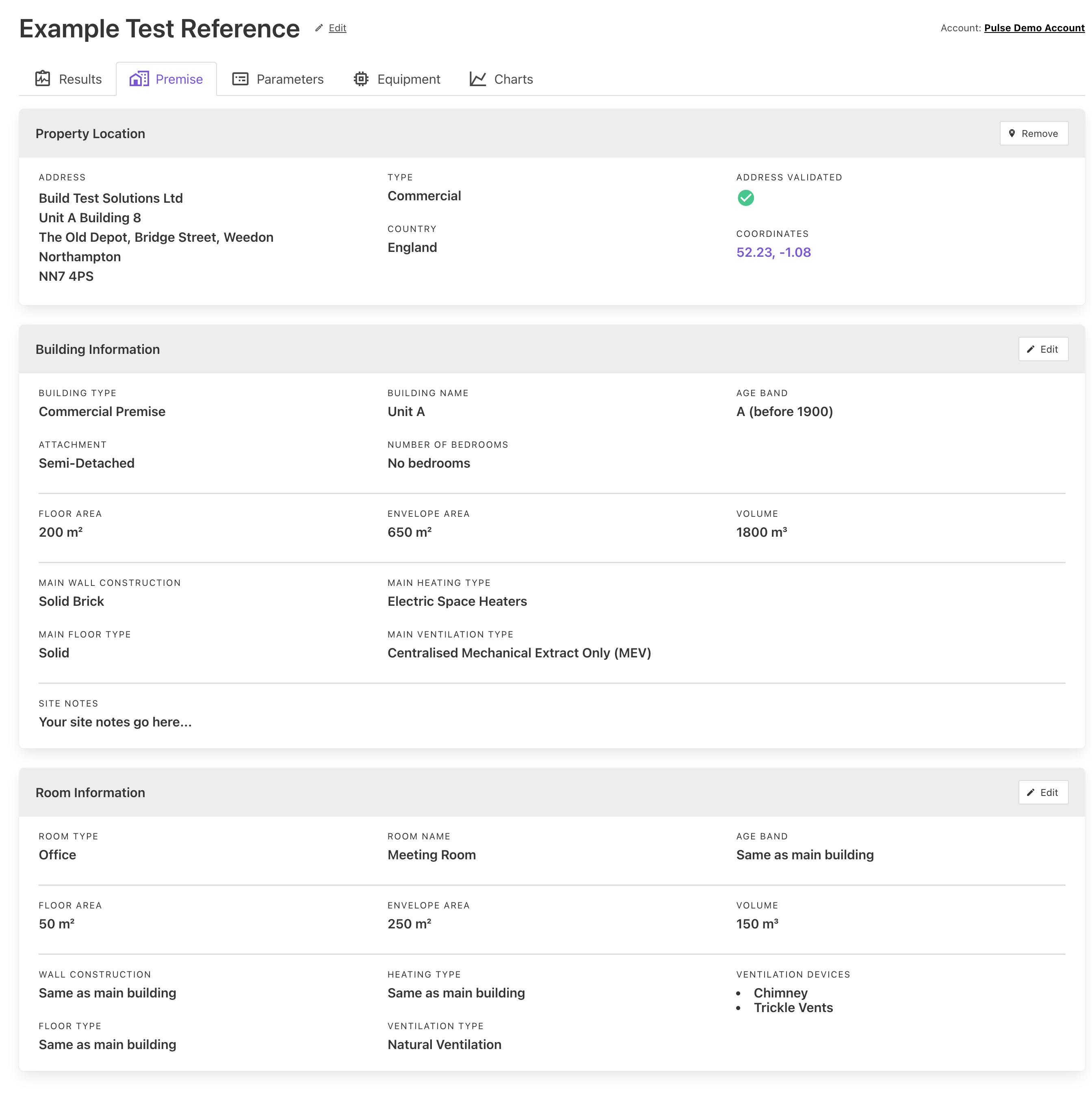
Adding a property address
If you haven’t already assigned a property address to the test, you can add one by either looking up the address or manually entering an address.UK address lookup
To assign an address quickly, start typing an address in the input box by entering either the postcode or house number + postcode. A list of matching addresses will be returned and you can select the correct address from the list displayed.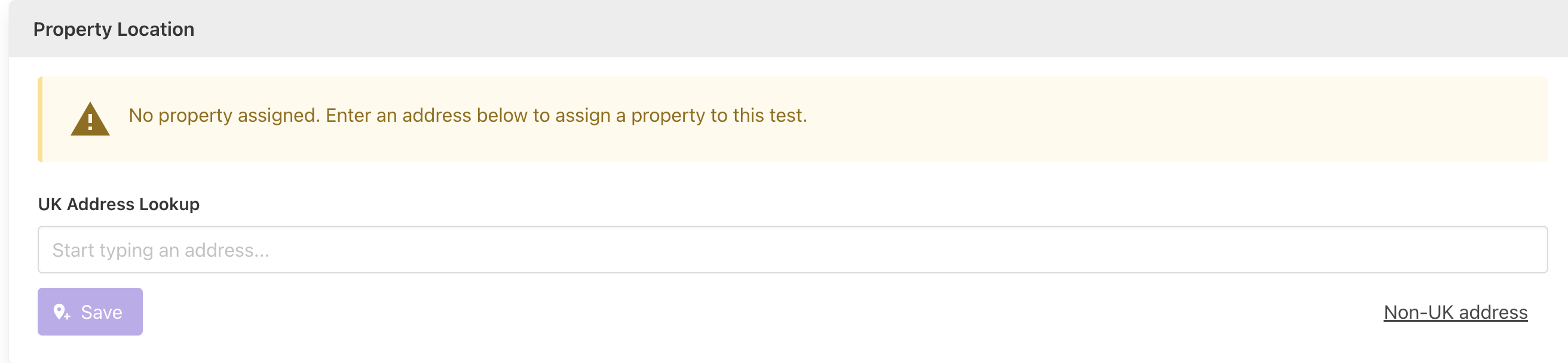
The address lookup functionality makes use of Royal Mail’s Postcode Address File (PAF®) including the “Not Yet Built” dataset.
This is a comprehensive database of all addresses in the UK, Channel Islands and Isle of Man, and includes dwellings still under construction.
Manually entering an address
If you cannot find the address using the lookup functionality, or you are entering a non-UK address, you can manually enter the address of the property. In the bottom right corner, click the Non-UK Address button and complete each of the address fields displayed.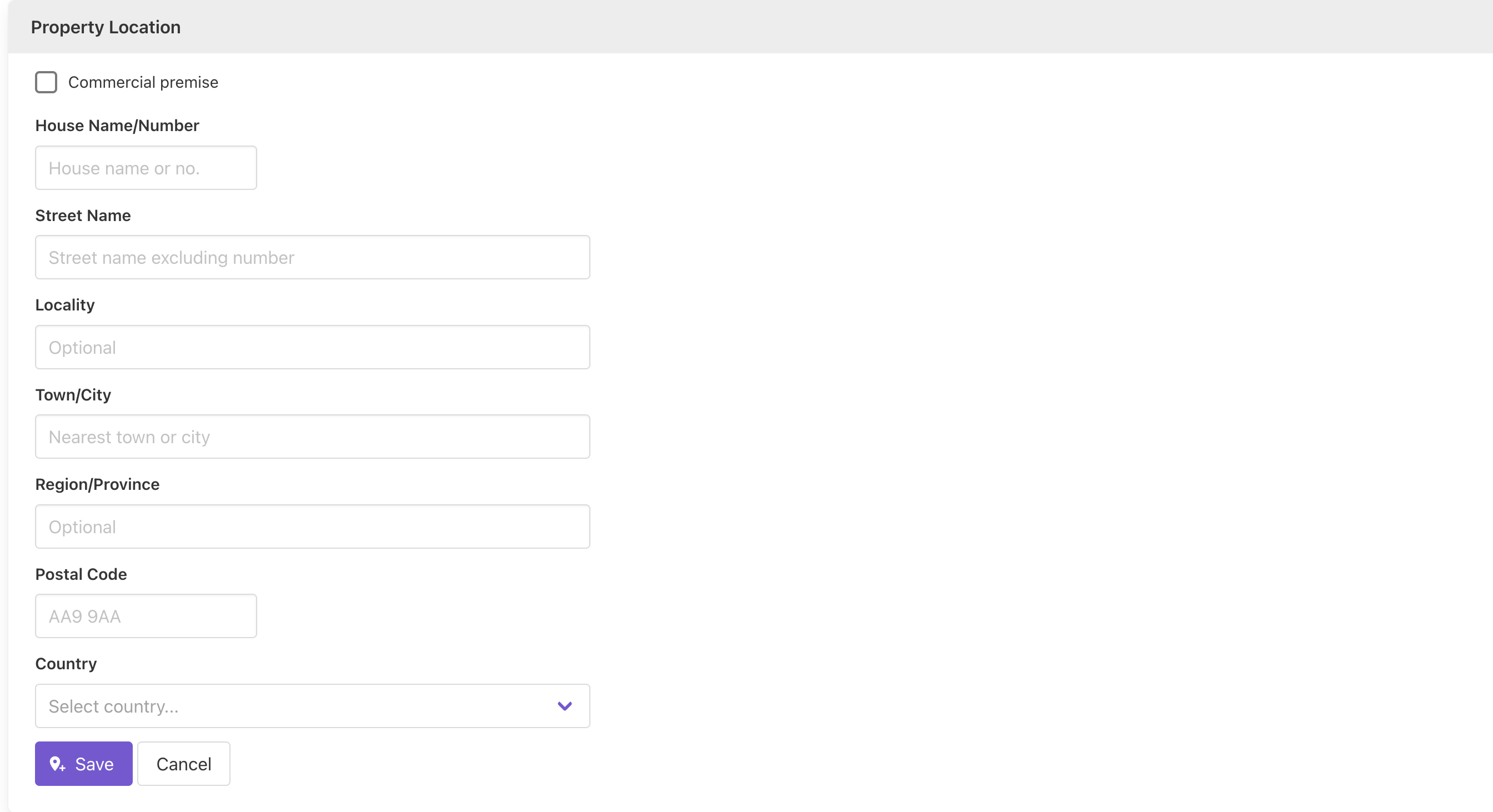
Managing building/room information
As with the Test Context, both Building Information and Room Information can be amended by clicking the Edit button in the top right corner of each respective panel. If you make any changes to the enclosure geometry (envelope area or volume), the result will be recalculated using the new dimensions.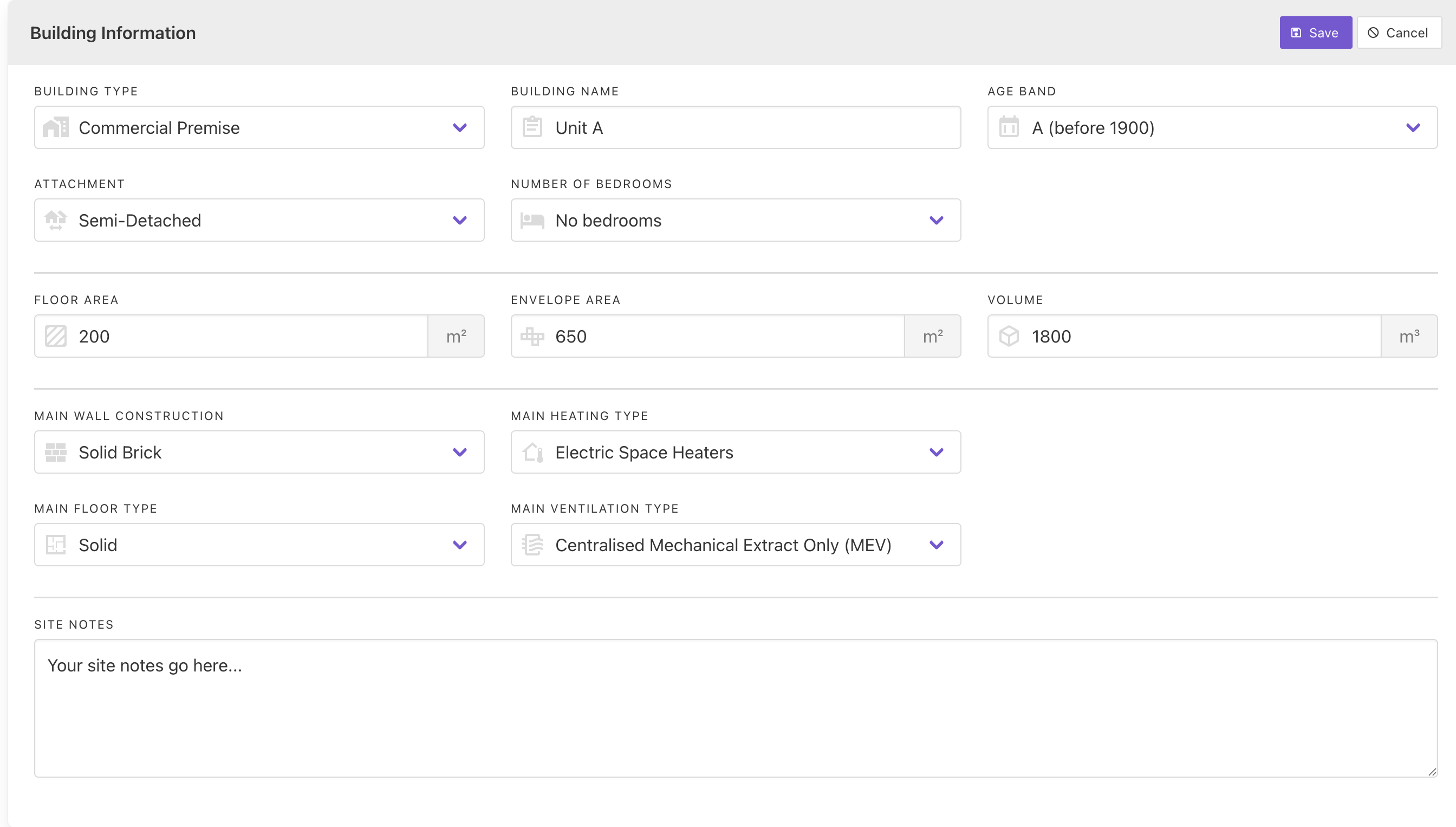
Parameters tab
The Parameters tab displays the settings that were used during the test cycle as well as detailed information about the calculation process.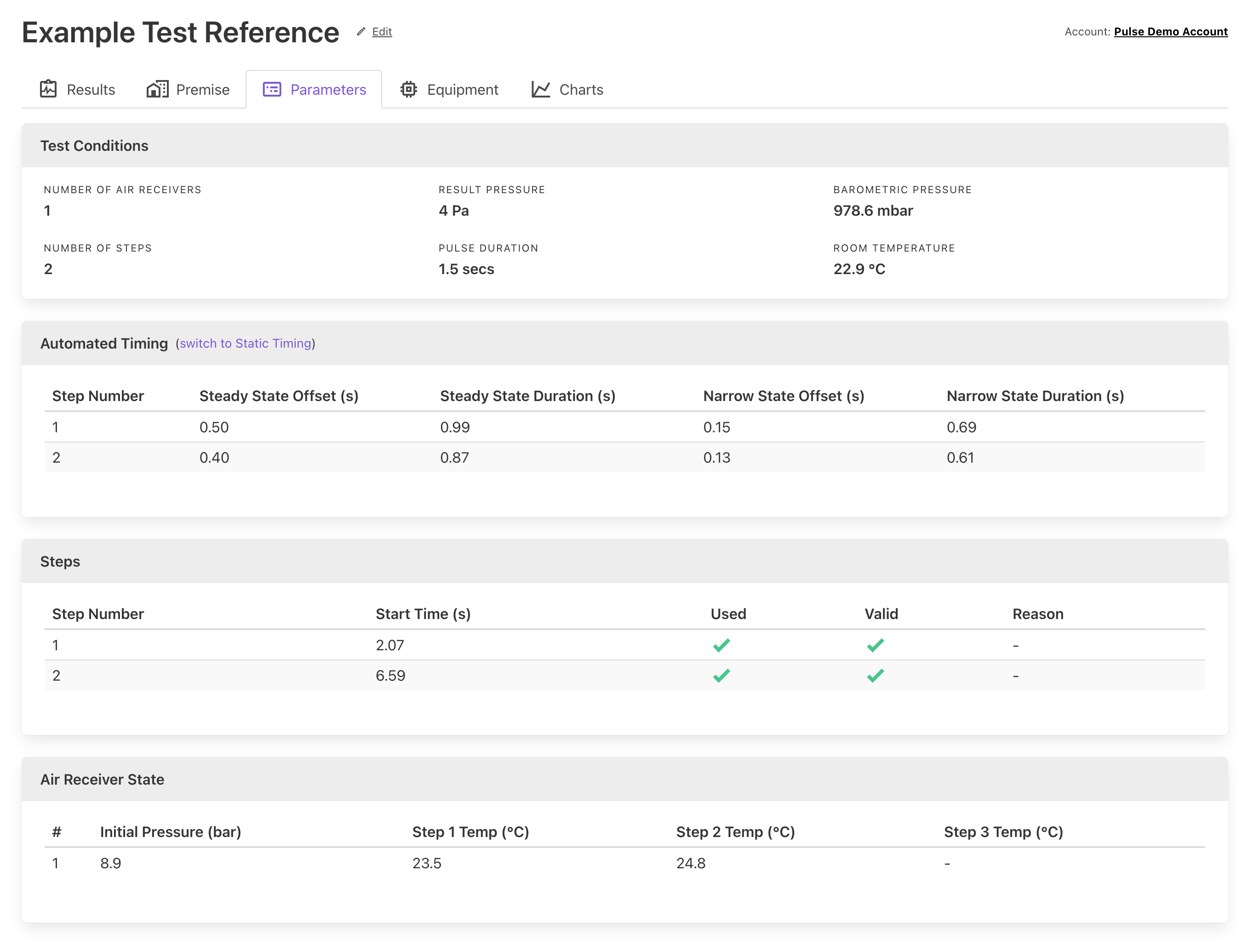
This information is designed for advanced users only.
Configuring static timing
The Pulse data analysis algorithm will automatically select the best timing routine when calculating the result and requires no user knowledge. Advanced users can, however, override this by using static timing for the various stages of the data analysis:Steady state period
Steady state is the period over which a polynomial fit is performed to determine a smoothed curve and a derivative of the air pressure. The Steady State Offset is the start of the defined steady state period, offset from the point the valve opens. This defaults to 0.5-seconds but may be manually adjusted to >= 0.3-secs. Steady State Duration must be >= 0.4-secs, and the sum of the Steady State Offset + Steady State Duration must not be longer than the total valve open duration (typically 1.5-secs or 3-secs when testing more airtight enclosures).Narrow state period
The Narrow State sits within the Steady State and is the period when data samples of air pressure and air leakage are collected for analysis. The sum of the Narrow State Offset + Narrow State Duration must be less than the Steady State Duration.Equipment tab
The Equipment tab displays information about the controller and air receivers that were used for the test.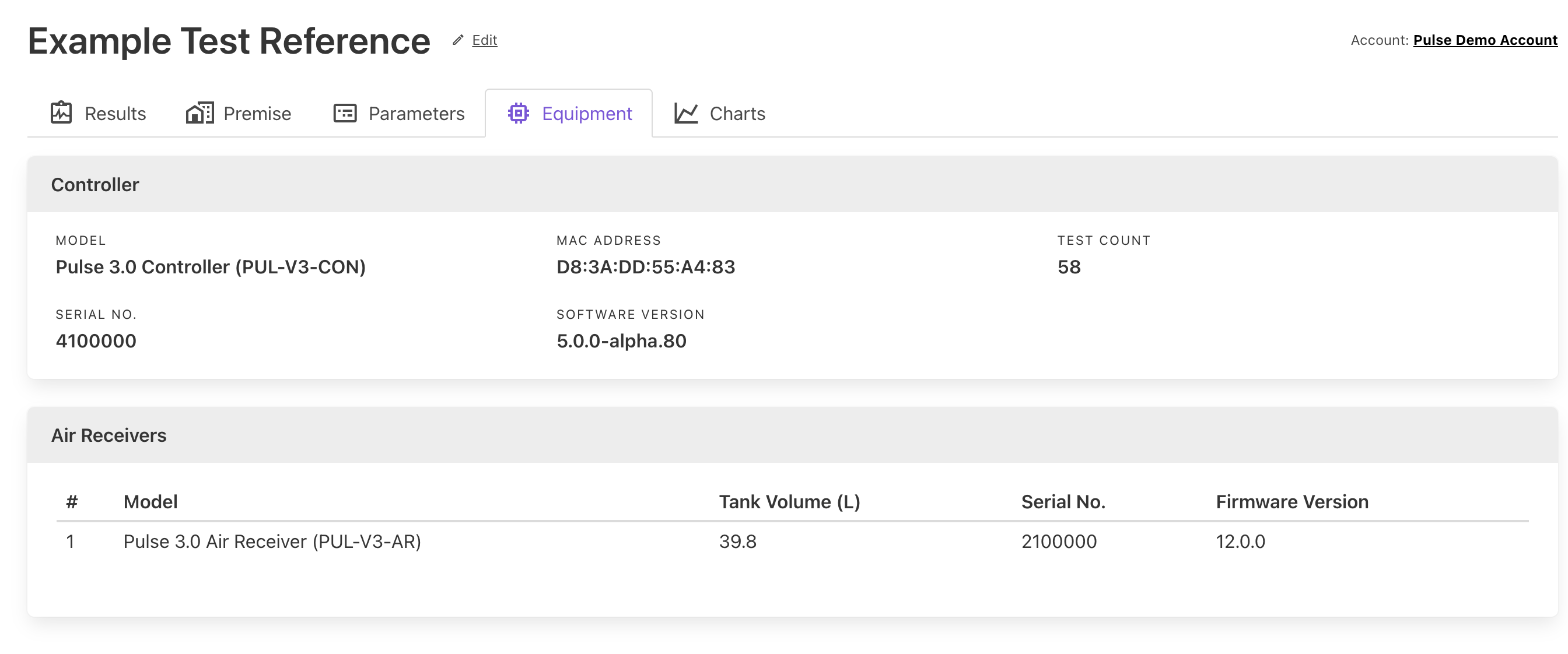
When producing a test certificate via a competency scheme, the serial numbers of the equipment will be checked to make sure they have been serviced and calibrated recently.