

Onscreen keyboard
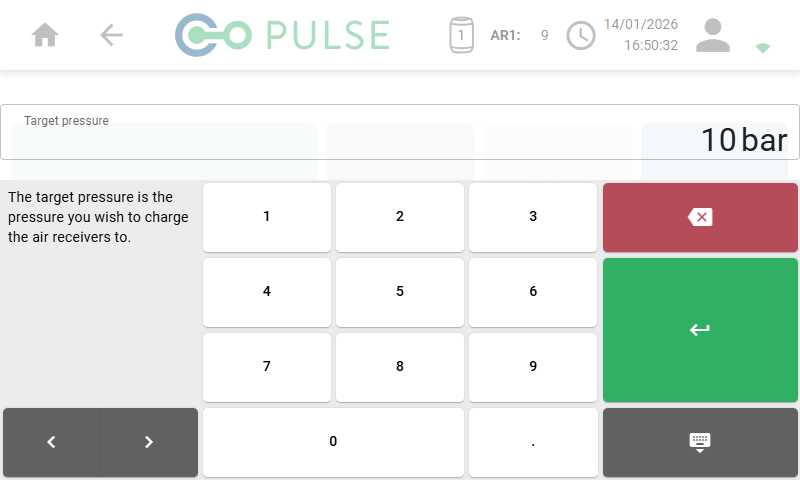
Whenever you are required to enter data into an input field, an onscreen keyboard will popup so that you can type in letters, numbers and punctuation in the same way you would on a standard computer keyboard. For text based input fields, the keyboard will have a standard QWERTY layout: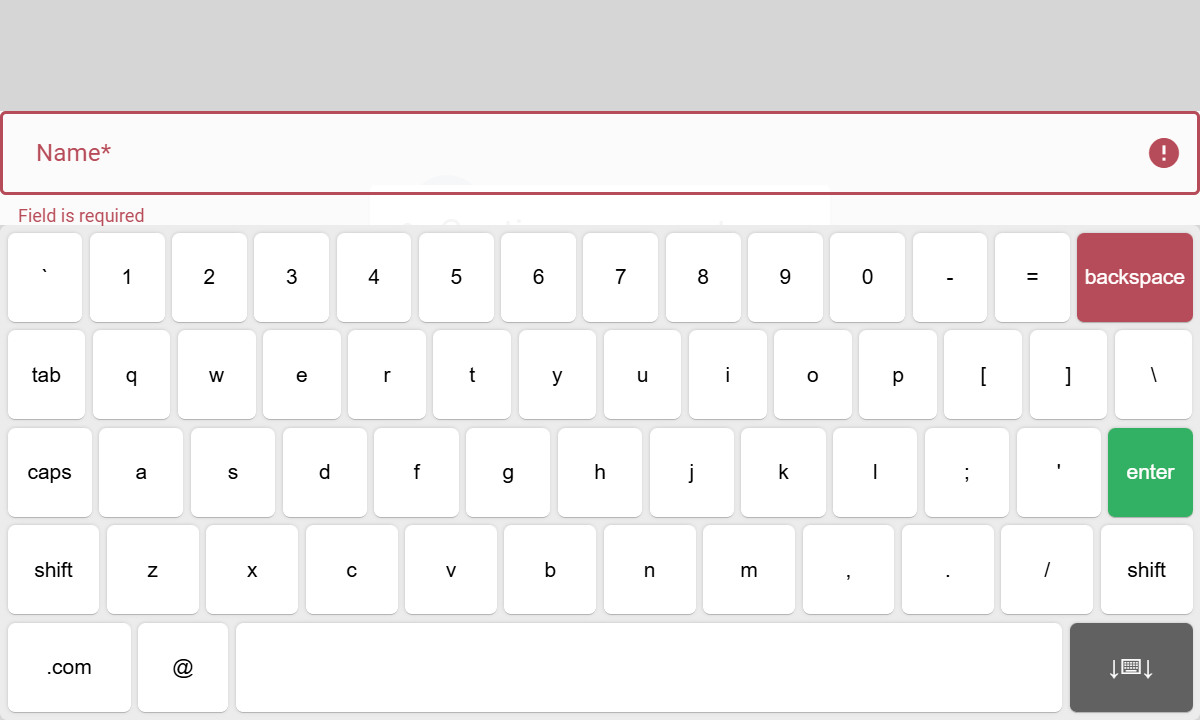 For numerical input fields, the keyboard will have a numeric keypad style layout:
Status bar
A status bar is always displayed at the top of the screen, and provides important information about the controller’s current state. It also provides simple navigation buttons that allow you to go back to the previous screen or return to the main menu.
| Icon | Description |
|---|---|
 | Home buttonWhen clicked, the home button will return you to the main menu. |
 | Back buttonWhen clicked, the back button will take you back to the previous screen you were on. |
 | Air receiver informationThe AR symbol shows the number of air receivers connected and their current charge pressure.When more than two air receivers are connected, the display will cycle through them every couple of seconds. |
 | Date and timeThe clock icon shows the current date and time on the controller. When not connected to Wi-Fi, you can change the date and time in the Settings menu. |
 | User informationWhen clicked, the user icon displays the currently logged-in user and selected account. Clicking the account name allows you to switch to a different account. |
 | Wi-Fi statusThe Wi-Fi icon displays the current status of the Wi-Fi connection and its signal strength. Clicking the icon will allow you to select a different Wi-Fi network. |