

Generating a test report
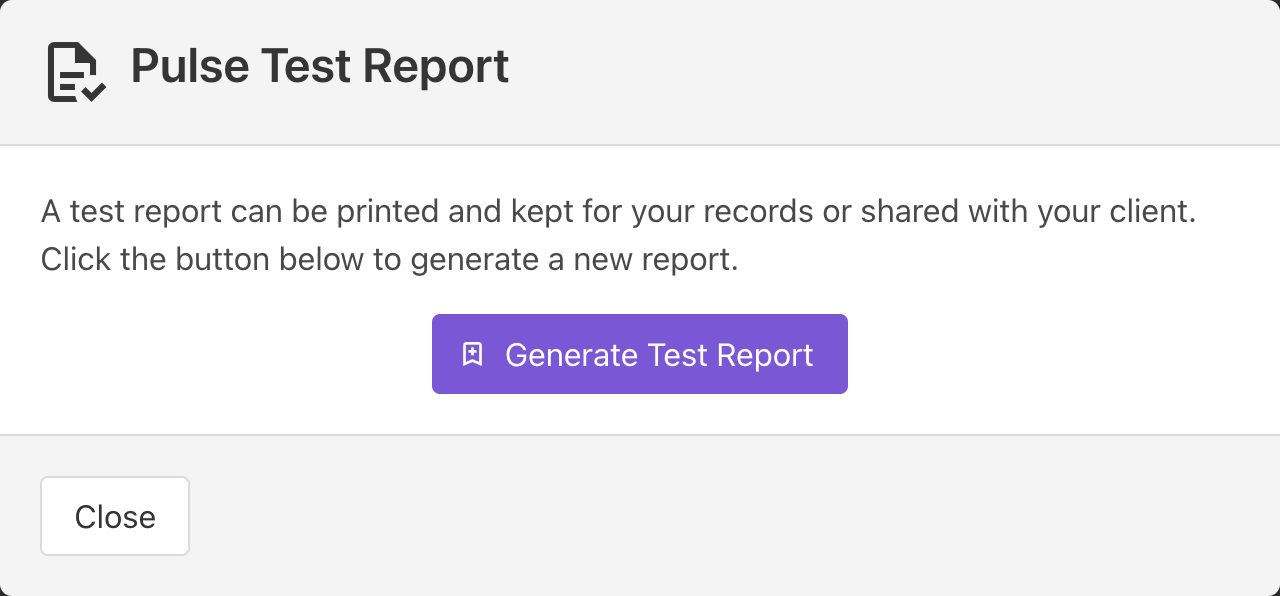
To generate a test report, click the Pulse Test Report button at the bottom of the View Test page. This will open the Pulse Test Report dialog box.
Amending a test report
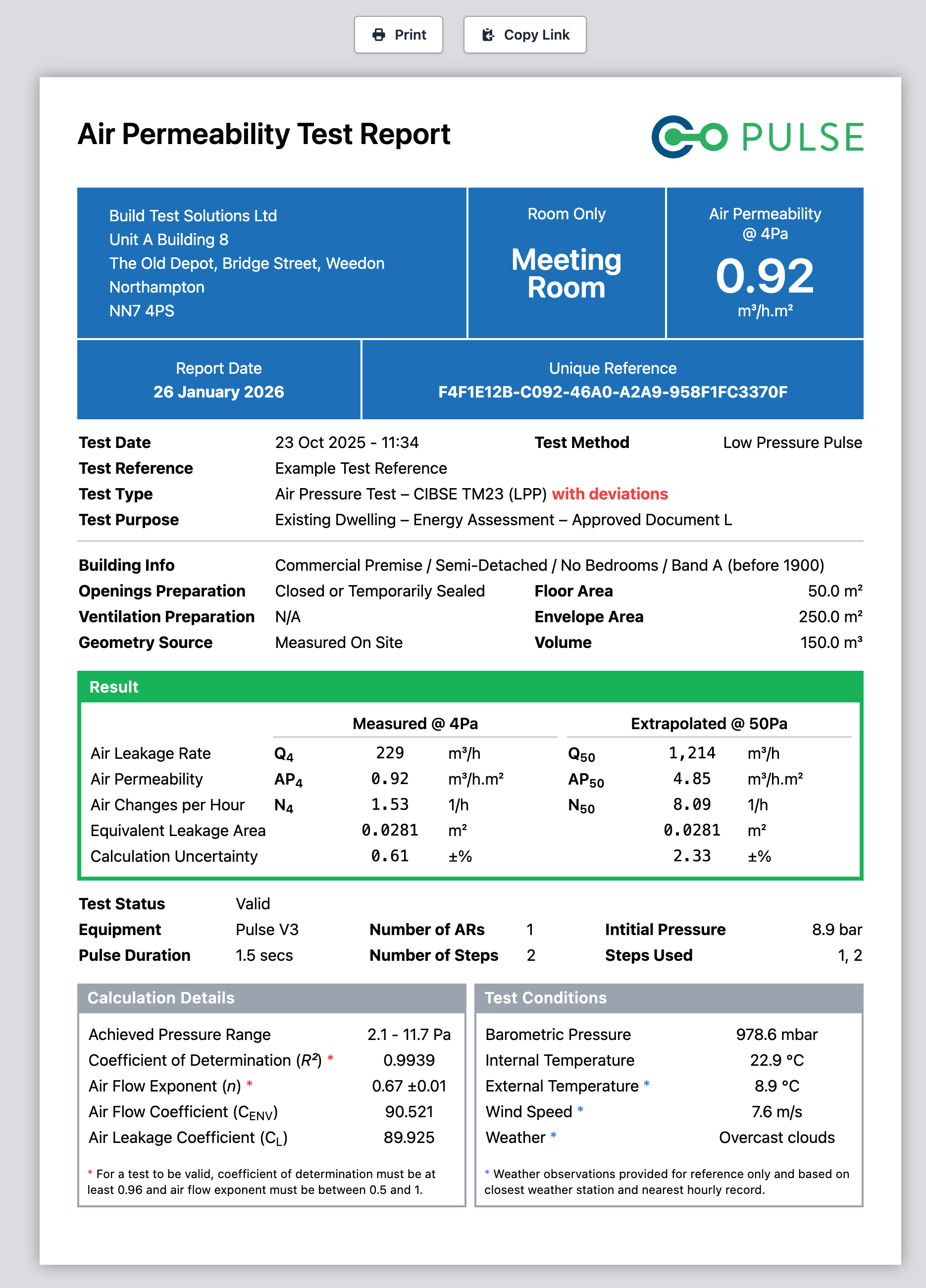
A test report is a fixed record of the test data at that point in time. Once the test report has been generated, the information displayed on the report cannot be changed. If you have made a mistake or need to amend any of the information, you will need to void the existing test report before generating a new one. To void a test report, return to the Pulse Test Report dialog and click the Void existing test report link at the bottom.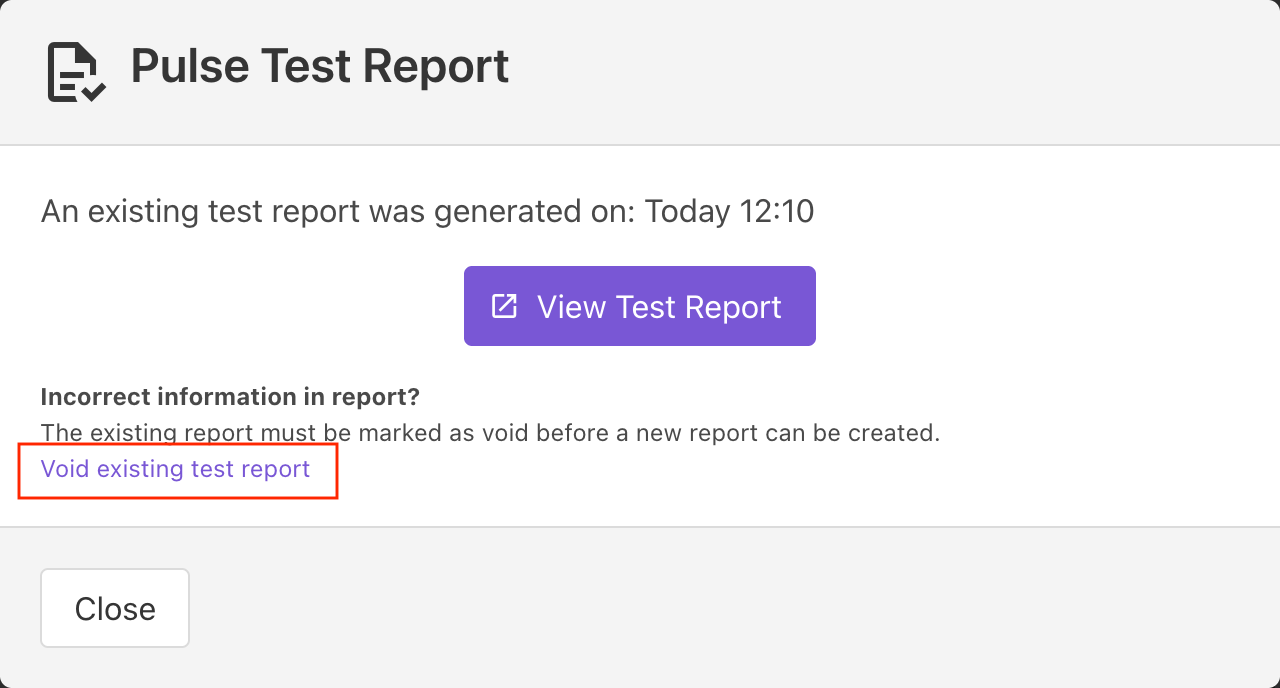
The existing test report web address will be marked as “VOID” and anybody visiting it will be provided with a link to the new version.
Printing a test report
The test report is designed to be printed on to A4 paper in such a way that it maintains its layout and format. Click the Print button to open the web browser’s print dialog box.Recommended print settings
When printing a test report, we recommended the following print settings for best appearance:
- Paper size = A4
- Print headers and footers = NO
- Print background graphics = YES
Producing a PDF test report
All modern web browsers have the option of producing a PDF document instead of physically printing to paper.To generate a PDF document:
- Click the Print button;
- Change the “Printer” or “Destination” to Print as PDF;
- Click the “Save” or “Print” button and choose the destination where you would like the generated PDF file to be saved to.
Customising the test report
For customers carrying out a large number of Pulse tests, we offer an additional paid-for service whereby the test report can be customised with your own logo and branding. Possible customisations include:- Replacing the Pulse logo at the top of the report with your own logo
- Altering the report title with your own wording
- Changing the colour scheme used throughout the report
Contact our sales team to request a quotation.