

Automatic uploading via Wi-Fi
Pulse tests can be uploaded via Wi-Fi if your controller is connected to the Internet and you’re logged in using an online user account on the controller. New tests will be automatically uploaded (after the test completes) to the preselected account when the automatic test upload feature is enabled in System settings. Previously completed tests can also be uploaded from the Test History screen of your controller as long as they haven’t already been uploaded.The cloud upload functionality will only be enabled when connected to Wi-Fi and signed in as an online user.
Manually uploading via USB
To upload test files via USB, you must first export them from the controller on to a compatible USB flash drive. Then on the Import Files page of Pulse Online, you can upload the .PAT files that were exported to the root of your USB flash drive. Using your computer, either drag and drop the files or select them from the assigned USB drive letter using the open file dialog.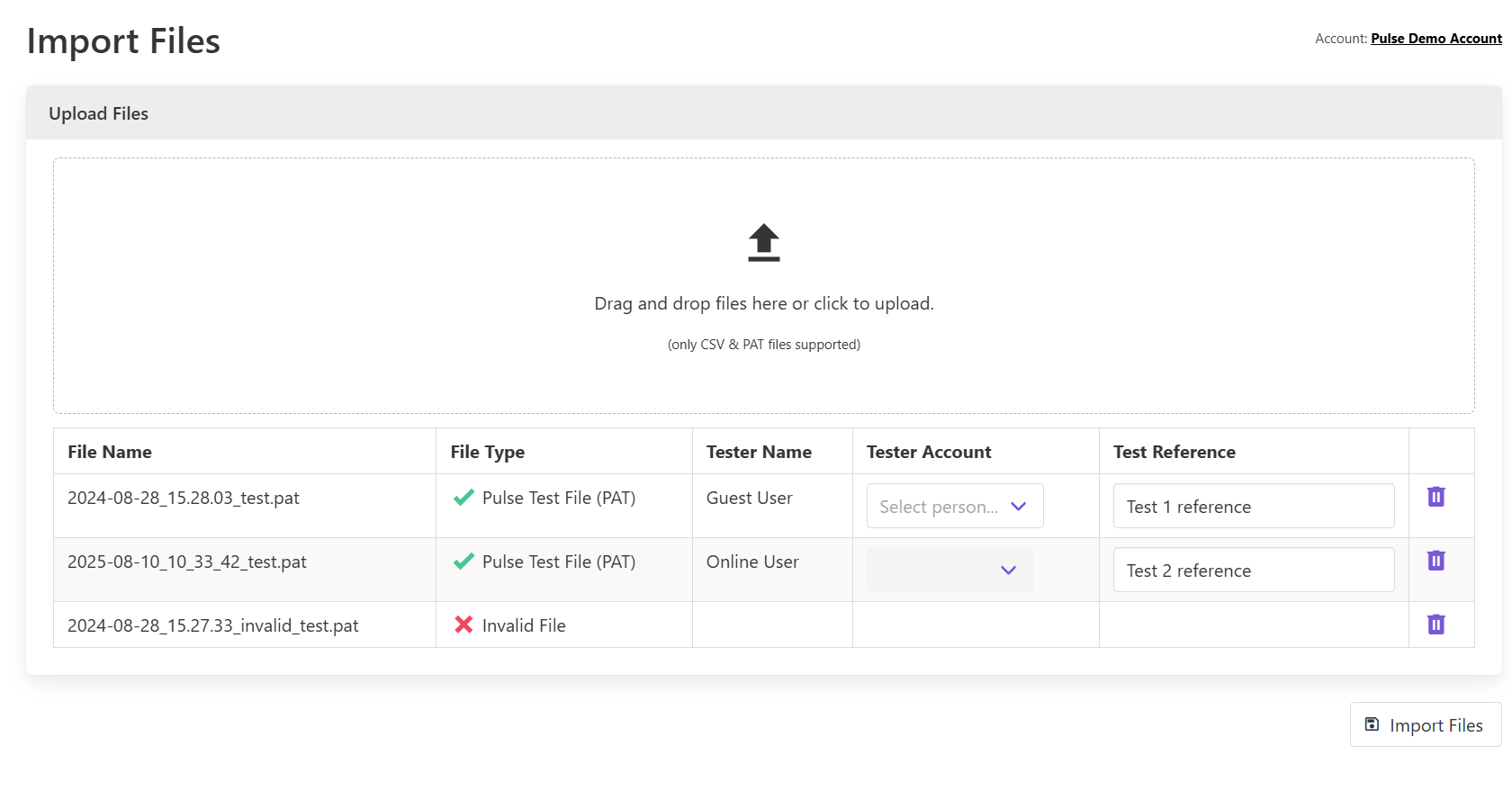 It is possible to amend the test reference of each .PAT file at this stage. You will also need to specify the person who carried out each test.
Once you have completed all of the required information, click the Import files button to upload them to your account.
It is possible to amend the test reference of each .PAT file at this stage. You will also need to specify the person who carried out each test.
Once you have completed all of the required information, click the Import files button to upload them to your account.