> ## Documentation Index
> Fetch the complete documentation index at: https://docs.pulseairtest.com/llms.txt
> Use this file to discover all available pages before exploring further.
# Login screen
 ## Sign in as a cloud user
### 1. Enter email address and password
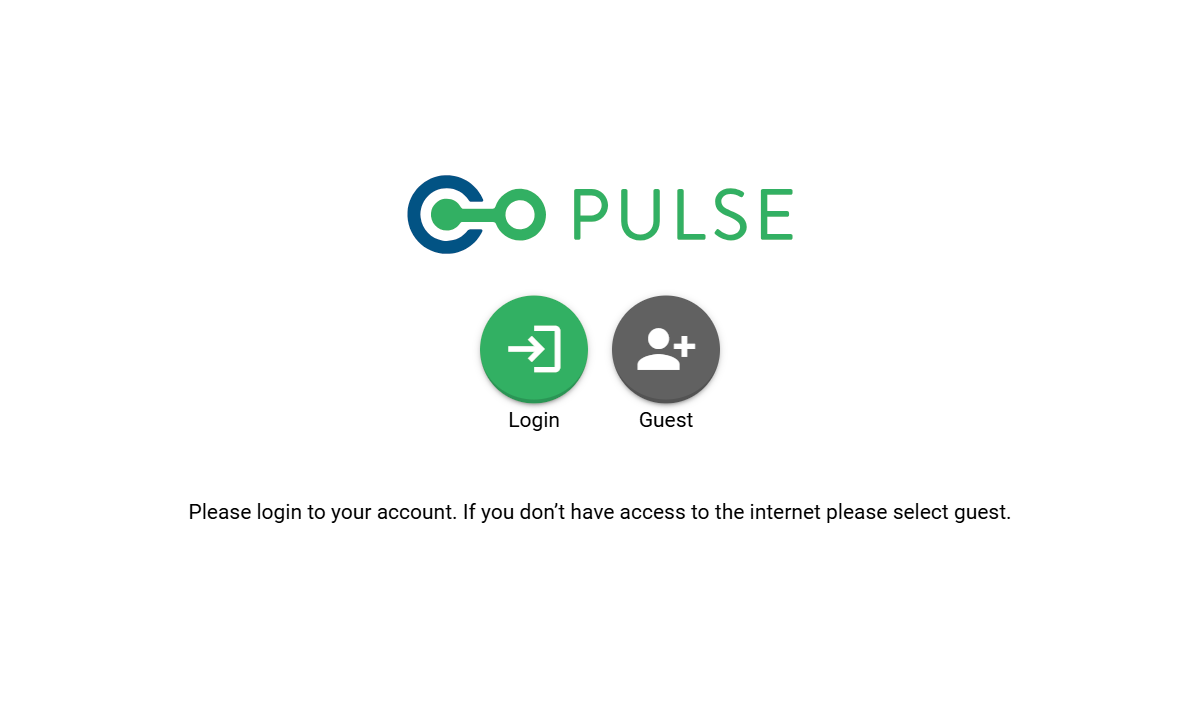
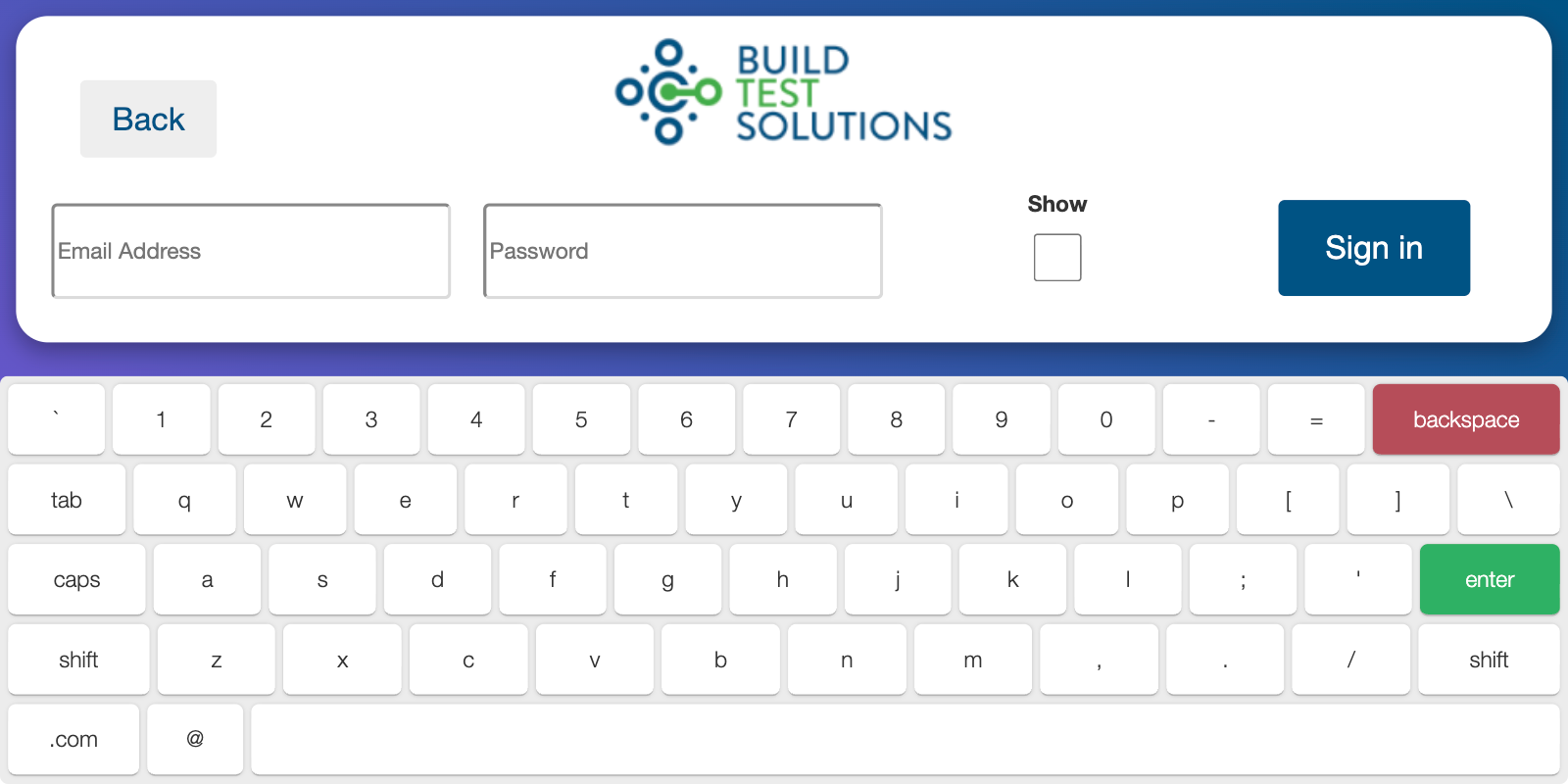
On the main login screen, select the **Login** icon to sign in as a cloud user. You will be directed to the BTS Single Sign-On (SSO) web page, where you must enter your email address and password.
## Sign in as a cloud user
### 1. Enter email address and password
On the main login screen, select the **Login** icon to sign in as a cloud user. You will be directed to the BTS Single Sign-On (SSO) web page, where you must enter your email address and password.
 You must be connected to Wi-Fi in order to log in as a new cloud user. Once logged in, you can work offline and only require re-authorisation over Wi-Fi periodically.
### 2. Select an account
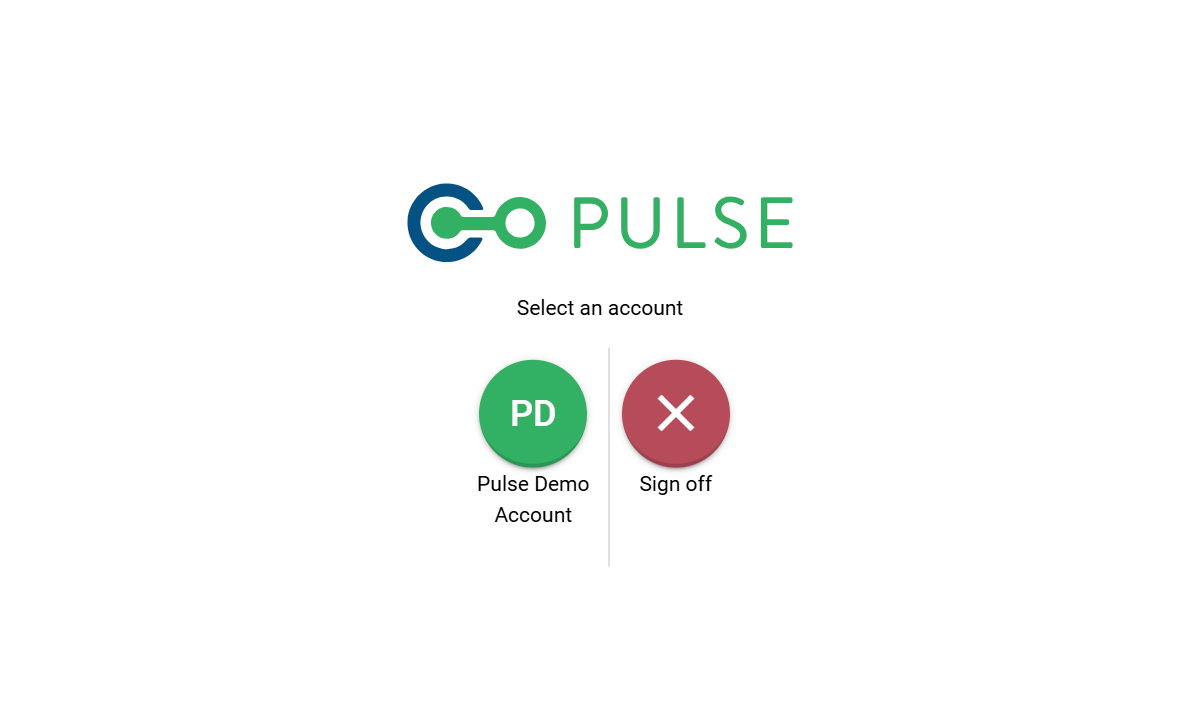
Once signed in, you will be asked to select an account to use. Accounts are a way of grouping tests together and allow other users with access to the same account to see the air tests performed both on the device and via the cloud.
You must be connected to Wi-Fi in order to log in as a new cloud user. Once logged in, you can work offline and only require re-authorisation over Wi-Fi periodically.
### 2. Select an account
Once signed in, you will be asked to select an account to use. Accounts are a way of grouping tests together and allow other users with access to the same account to see the air tests performed both on the device and via the cloud.
 ## Sign in as a guest user
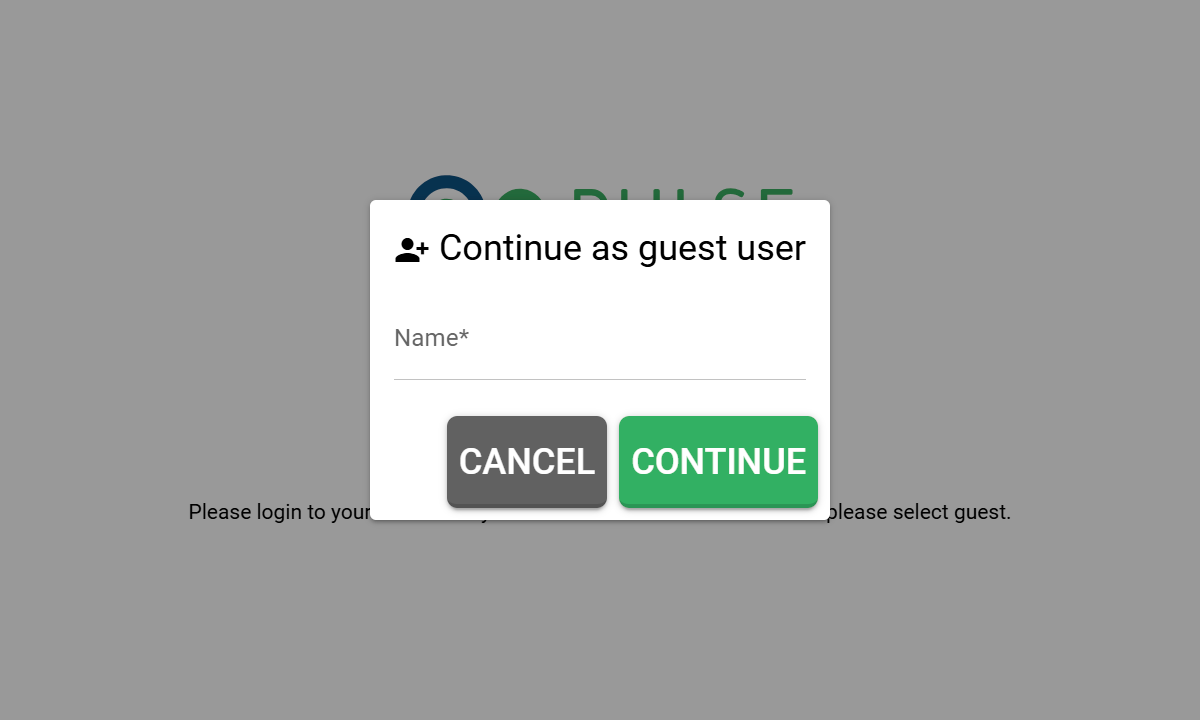
To use your Pulse equipment offline or without Wi-Fi, you can create a guest user locally on the device. On the main login screen, select the **Create Guest** icon and enter the full name of the person who will be using the equipment.
## Sign in as a guest user
To use your Pulse equipment offline or without Wi-Fi, you can create a guest user locally on the device. On the main login screen, select the **Create Guest** icon and enter the full name of the person who will be using the equipment.
 Tests performed using a guest user can only ever be uploaded to Pulse Online using the manual USB export method. It is not possible to upload them over Wi-Fi.