> ## Documentation Index
> Fetch the complete documentation index at: https://docs.pulseairtest.com/llms.txt
> Use this file to discover all available pages before exploring further.
# Settings screen
The *Settings* screen allows you to manage and configure various aspects of the controller.
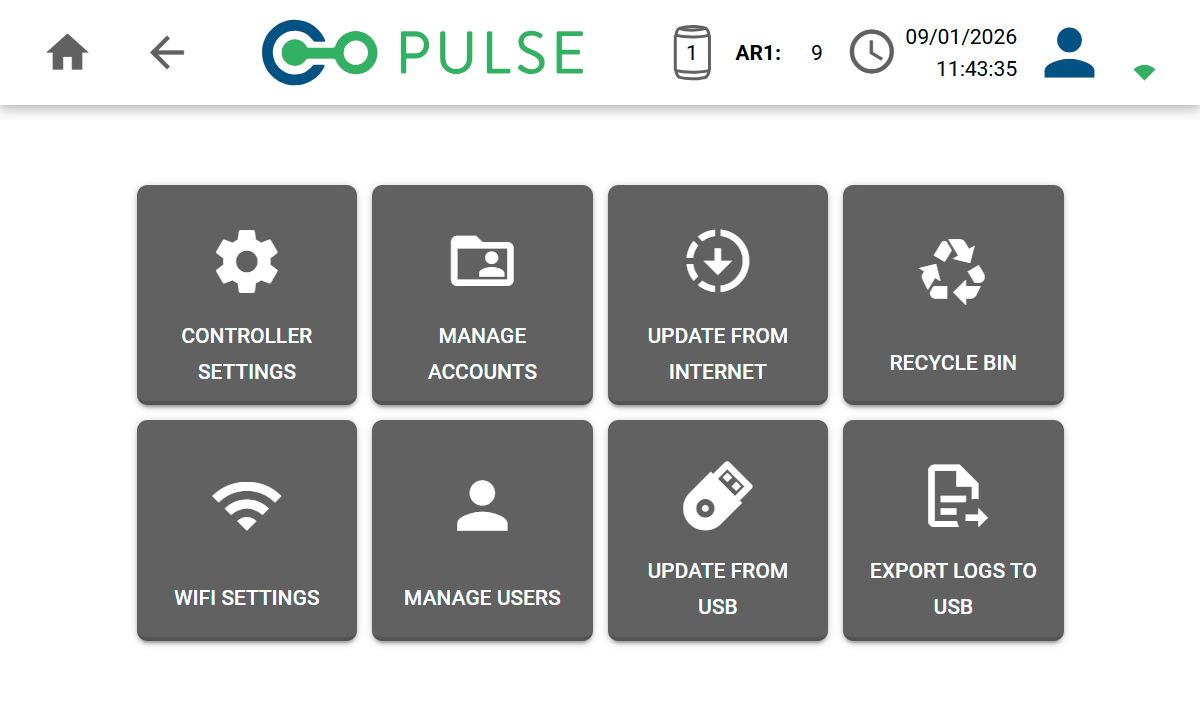 ## Controller settings
The *Controller Settings* allows default settings, regional information and support/diagnostic options to be configured.
### Defaults
## Controller settings
The *Controller Settings* allows default settings, regional information and support/diagnostic options to be configured.
### Defaults
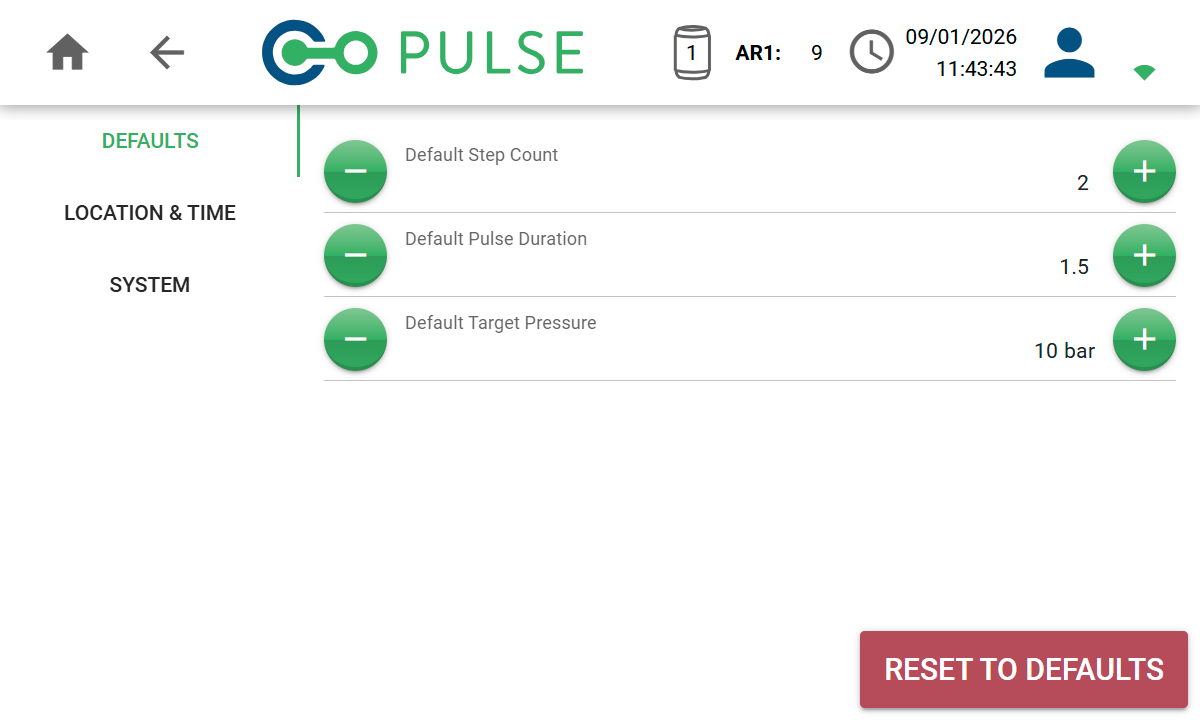 Set the number of steps used during a Pulse test cycle. This defaults to a 2-step test.
Set the duration (in seconds) that the main release valve will be open for at each step of the test cycle.
Set the target pressure (in bar) that any connected air receivers will be charged to.
### Location & time
Set the number of steps used during a Pulse test cycle. This defaults to a 2-step test.
Set the duration (in seconds) that the main release valve will be open for at each step of the test cycle.
Set the target pressure (in bar) that any connected air receivers will be charged to.
### Location & time
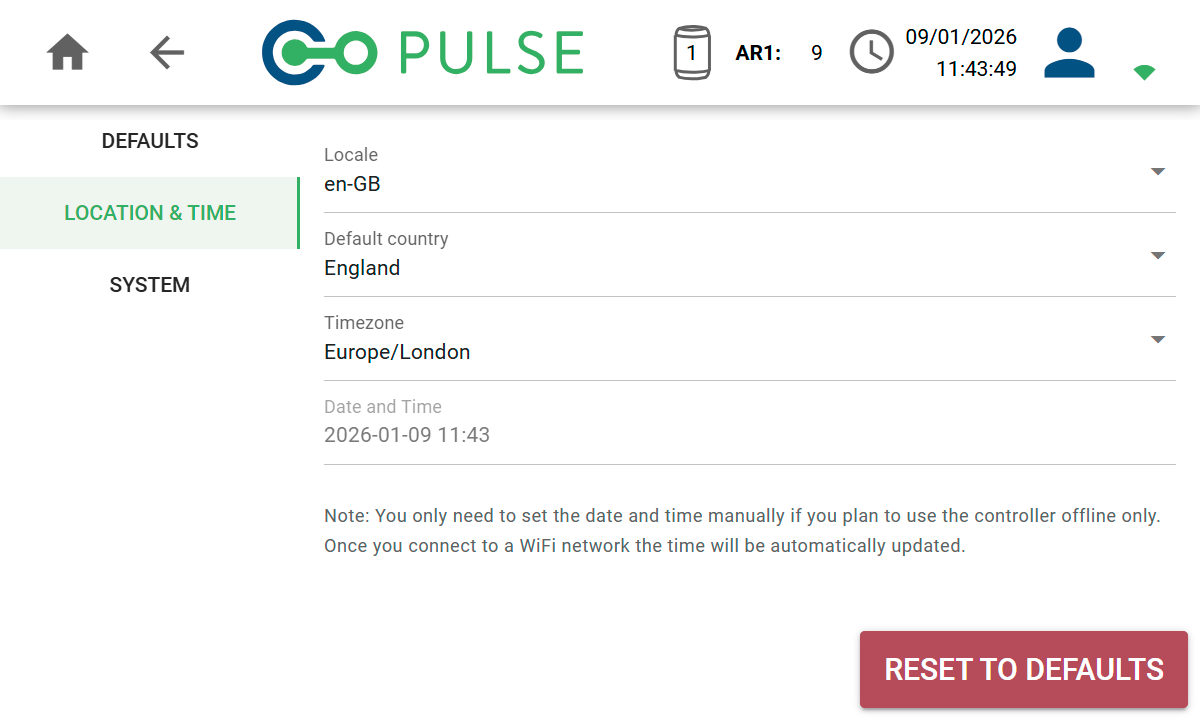 Sets the display language as well as the date/time and number formats used.
Sets the country that will be selected by default when adding a property address manually.
Sets the timezone that all times will be converted to. Times are always stored as UTC but can be converted to your local timezone.
Enables you to set the date and time on the controller when you are not connected to Wi-Fi.
### System
Sets the display language as well as the date/time and number formats used.
Sets the country that will be selected by default when adding a property address manually.
Sets the timezone that all times will be converted to. Times are always stored as UTC but can be converted to your local timezone.
Enables you to set the date and time on the controller when you are not connected to Wi-Fi.
### System
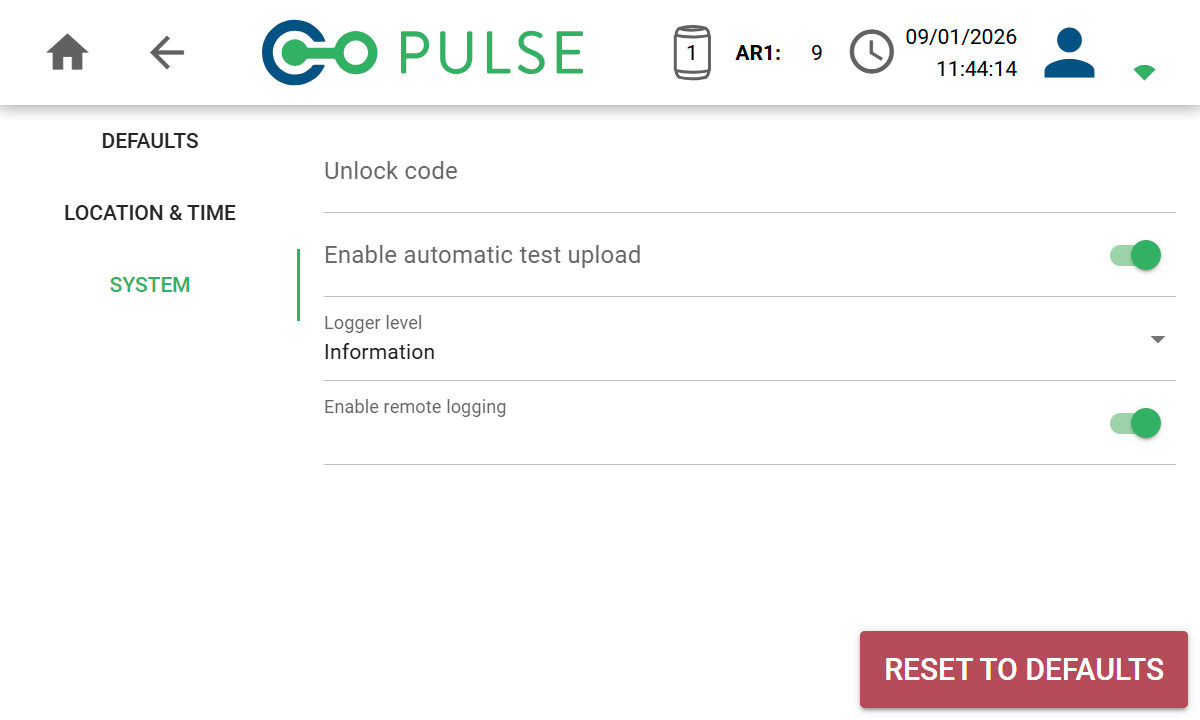 Entering an unlock code enables access to administrative and debug features to be turned on.
This will only be used when you are requested to use it by our technical support team.
Toggle on to automatically upload each test to the cloud as soon as it has completed.
Sets the level of logging detail used in log files. Administrative use only.
Toggle on to send logging and diagnostics information to our technical support team.
This is essential to help our technical support team remotely debug any issues.
## Wi-Fi settings
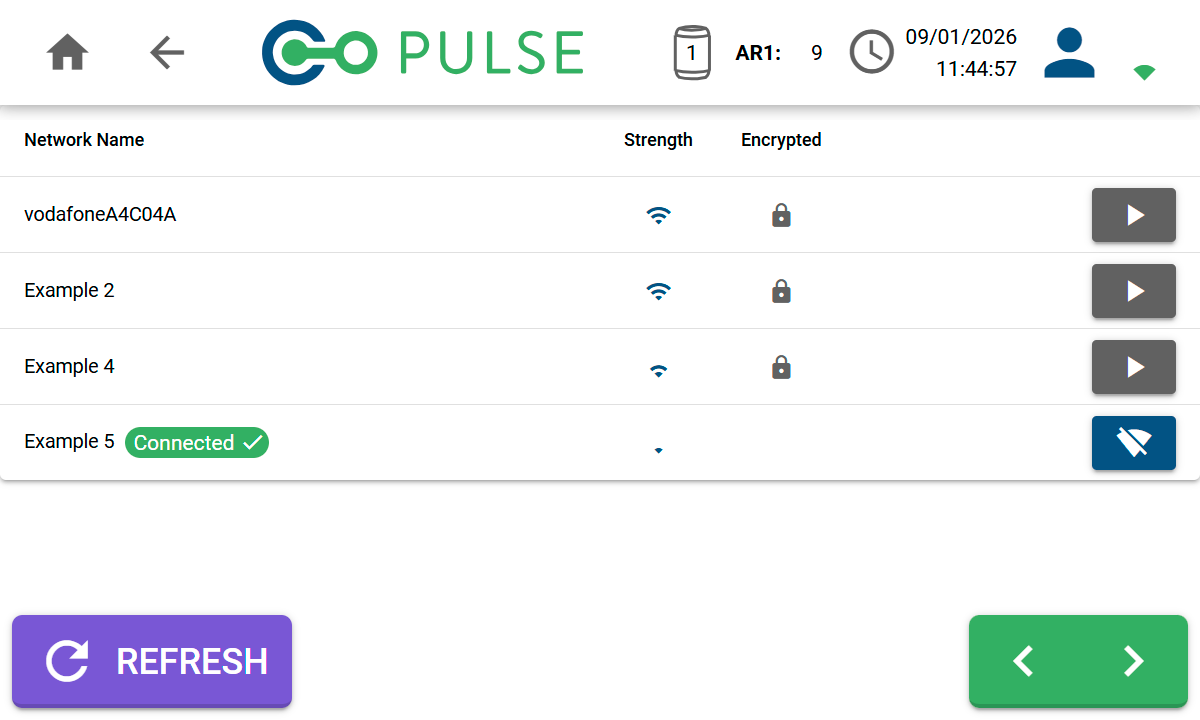
The *Wi-Fi Settings* page allows you to manage saved Wi-Fi networks as well as connect to a new Wi-Fi network or mobile hotspot.
Entering an unlock code enables access to administrative and debug features to be turned on.
This will only be used when you are requested to use it by our technical support team.
Toggle on to automatically upload each test to the cloud as soon as it has completed.
Sets the level of logging detail used in log files. Administrative use only.
Toggle on to send logging and diagnostics information to our technical support team.
This is essential to help our technical support team remotely debug any issues.
## Wi-Fi settings
The *Wi-Fi Settings* page allows you to manage saved Wi-Fi networks as well as connect to a new Wi-Fi network or mobile hotspot.
 | Icon | Description |
| ---------------------------------------------------------------------------------------------------------------------------------------------------------------------------------------------------------------------------------------------------------------------------------------------------------------------------------------------------------------------------------------------------------------------------------------------------------------------------------------------------------------------------------------------------------------------------------------------------------------------------------------------------------------------------------------------------------------------------------------------------------------------------------------------------------------------------------------------------------------------------------------------------------------------------------------------------------------------------------------------------------------------------------------------------------------------------------------------------------------------------------------------------------------------------------------------------------------------------------------------------------------------------------------------------------------------------------------------------------------------------------------------------------------------------------------------------------------------------------------------- | ---------------------------------------------------------------------------------------------------------------------------------------------------- |
|
| Icon | Description |
| ---------------------------------------------------------------------------------------------------------------------------------------------------------------------------------------------------------------------------------------------------------------------------------------------------------------------------------------------------------------------------------------------------------------------------------------------------------------------------------------------------------------------------------------------------------------------------------------------------------------------------------------------------------------------------------------------------------------------------------------------------------------------------------------------------------------------------------------------------------------------------------------------------------------------------------------------------------------------------------------------------------------------------------------------------------------------------------------------------------------------------------------------------------------------------------------------------------------------------------------------------------------------------------------------------------------------------------------------------------------------------------------------------------------------------------------------------------------------------------------------- | ---------------------------------------------------------------------------------------------------------------------------------------------------- |
|  |
| Connect button
Click to connect to this Wi-Fi network. If a password is required you will be prompted to enter it. |
|  |
| Disconnect button
Click to disconnect from this Wi-Fi network. The password will be stored so you can reconnect at a later date. |
|  |
| Forget button
Click to forget this Wi-Fi network. You will need to re-enter the password to connect again. |
## Manage accounts
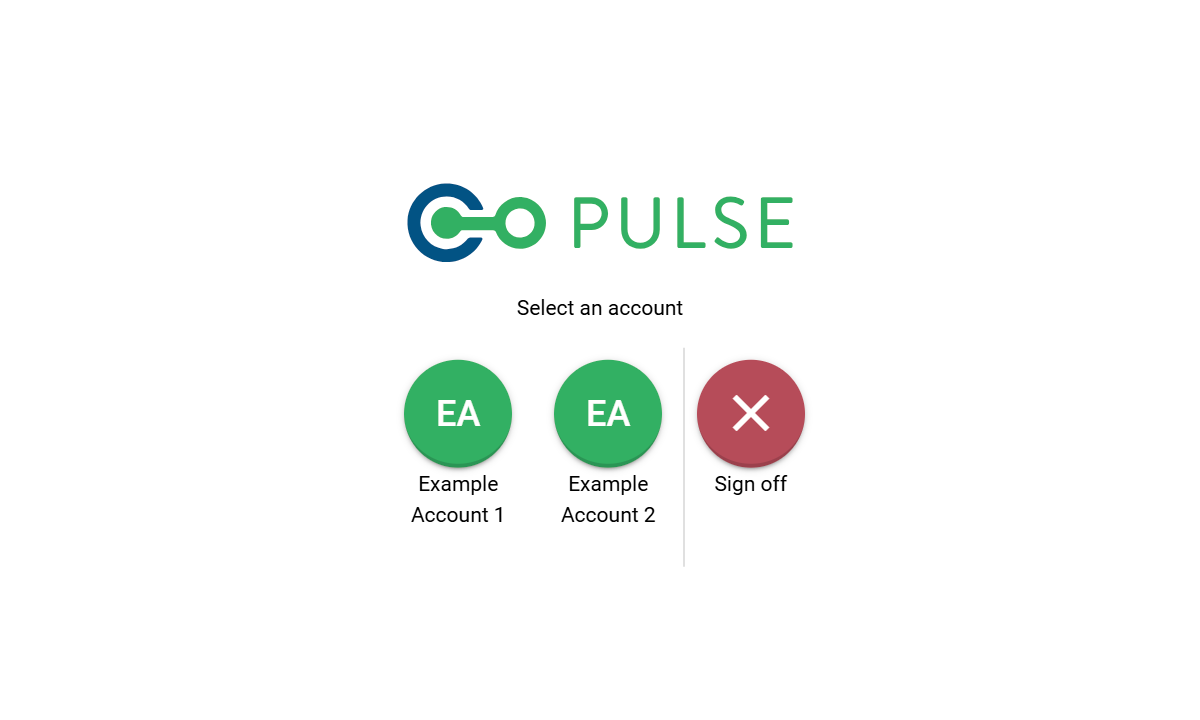
Online users may have access to more than one cloud account. The *Manage Accounts* page allows you to select which account you want to use.
The *Test History* screen will only show tests that were done using the selected account.
 ## Manage users
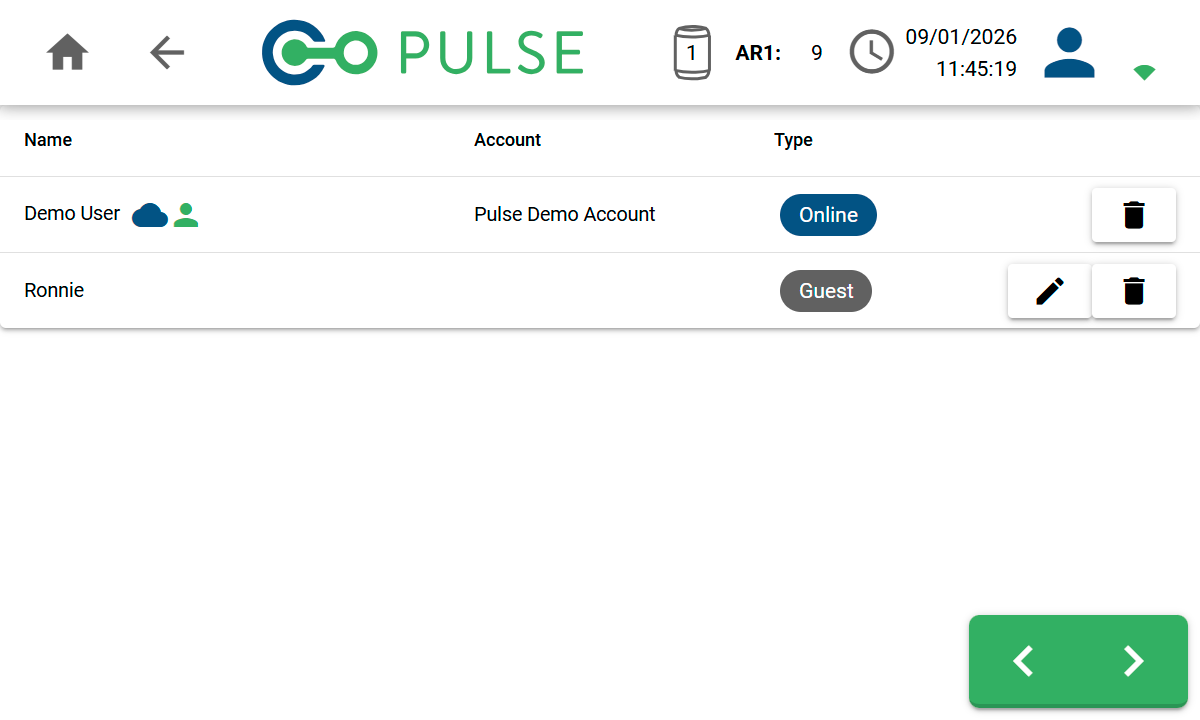
The *Manage Users* screen allows you to edit or delete other users that exist on this controller. Both online cloud users and guest users will be displayed.
## Manage users
The *Manage Users* screen allows you to edit or delete other users that exist on this controller. Both online cloud users and guest users will be displayed.
 | Icon | Description |
| -------------------------------------------------------------------------------------------------------------------------------------------------------------------------------------------------------------------------------------------------------------------------------------------------------------------------------------------------------------------------------------------------------------------------------------------------------------------------------------------------------------------------------------------------------------------------------------------------------------------------------------------------------------------------------------------------------------------------------------------------------------------------------------------------------------------------------------------------------------------------------------------------------------------------------------------------------------------------------------------------------------------------------------------------------------------------------------------------------------------------------------------------------------------------------------------------------------------------------------------------------------------------------------------------------------------------------------------------------------------------------------------------------------- | ------------------------------------------------------------------------------------------------- |
|
| Icon | Description |
| -------------------------------------------------------------------------------------------------------------------------------------------------------------------------------------------------------------------------------------------------------------------------------------------------------------------------------------------------------------------------------------------------------------------------------------------------------------------------------------------------------------------------------------------------------------------------------------------------------------------------------------------------------------------------------------------------------------------------------------------------------------------------------------------------------------------------------------------------------------------------------------------------------------------------------------------------------------------------------------------------------------------------------------------------------------------------------------------------------------------------------------------------------------------------------------------------------------------------------------------------------------------------------------------------------------------------------------------------------------------------------------------------------------- | ------------------------------------------------------------------------------------------------- |
|  |
| Cloud icon
Indicates this user is a cloud account. |
|  |
| Account
Indicates this is the currently signed in user. |
|  |
| Edit button
Click to edit the name of the user. Only visible for guest users. |
|  |
| Delete button
Click to delete the user and remove them from the device. |
Deleting a user will also remove all tests from the device belonging to that
user.
## Update from Internet
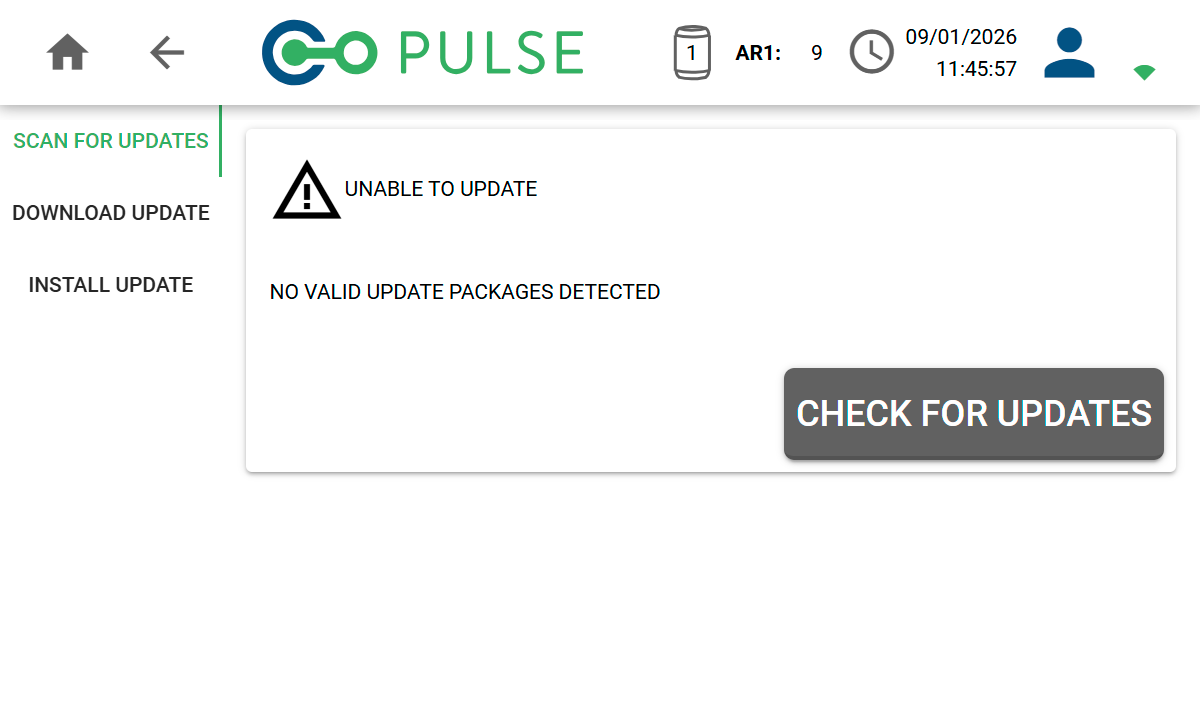
When a new version of the controller software is available, the controller software will automatically prompt you to update to the latest version during boot up.
It is also possible to check for software updates on the *Update from Internet* screen. Follow the on-screen prompts to update your software.
 Online software updates require an active Wi-Fi connection.
Refer to online updating via Wi-Fi for more information.
## Update from USB
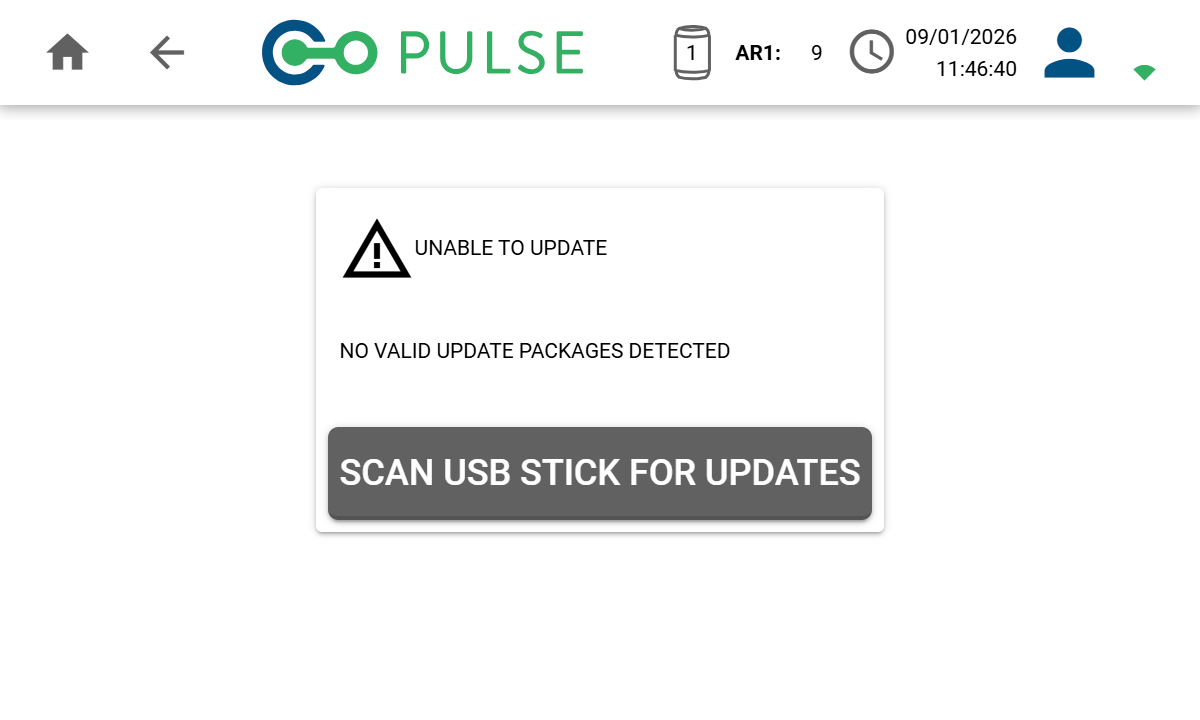
Manual software updates can also be performed using a USB flash drive. Firstly, download the latest software build from Pulse Online and copy it to the root folder of a USB flash drive.
Whilst on the *Settings* screen, insert the USB flash drive into the Data socket on the controller. This will enable the *Update from USB* screen to be accessed, where you can follow the on-screen prompts to update your software.
Online software updates require an active Wi-Fi connection.
Refer to online updating via Wi-Fi for more information.
## Update from USB
Manual software updates can also be performed using a USB flash drive. Firstly, download the latest software build from Pulse Online and copy it to the root folder of a USB flash drive.
Whilst on the *Settings* screen, insert the USB flash drive into the Data socket on the controller. This will enable the *Update from USB* screen to be accessed, where you can follow the on-screen prompts to update your software.
 Refer to the manually updating via USB flash drive for more information.
## Recycle bin
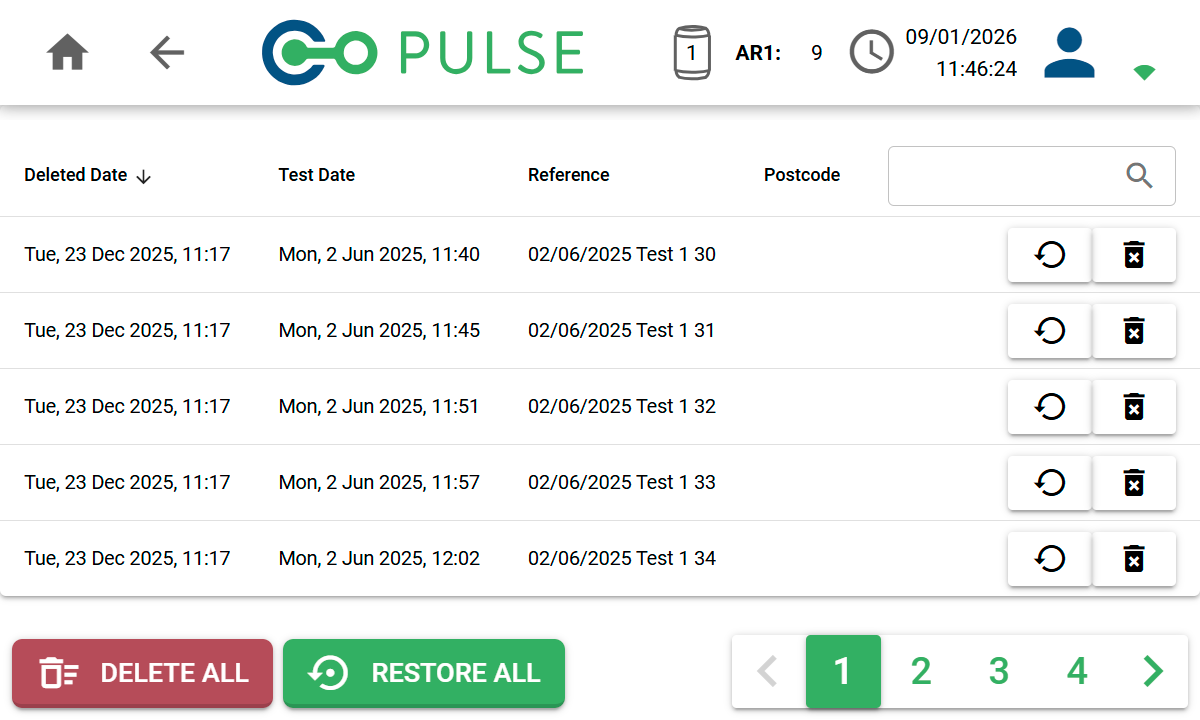
When a Pulse test is deleted from the *Test result* or *Test history* screens, it will be moved to the recycle bin.
The *Recycle Bin* screen can be used to restore/undelete these tests or alternatively delete them permanently.
Refer to the manually updating via USB flash drive for more information.
## Recycle bin
When a Pulse test is deleted from the *Test result* or *Test history* screens, it will be moved to the recycle bin.
The *Recycle Bin* screen can be used to restore/undelete these tests or alternatively delete them permanently.
 | Icon | Description |
| ---------------------------------------------------------------------------------------------------------------------------------------------------------------------------------------------------------------------------------------------------------------------------------------------------------------------------------------------------------------------------------------------------------------------------------------------------------------------------------------------------------------------------------------------------------------------------------------------------------------------------------------------------------------------------------------------------------------------------------------------------------------------------------------------------------------------------------------------------------------------------------------------------------------------------------------------------------------------------------------------------------------------------------------------------------------------------------------------------------------------------------------------------------------------------------------------------------------------------------------------------------------------------------------------------------------------------------------------------------------------------------------------------------------------------------------------------------------------- | ------------------------------------------------------------------------------------------------------------ |
|
| Icon | Description |
| ---------------------------------------------------------------------------------------------------------------------------------------------------------------------------------------------------------------------------------------------------------------------------------------------------------------------------------------------------------------------------------------------------------------------------------------------------------------------------------------------------------------------------------------------------------------------------------------------------------------------------------------------------------------------------------------------------------------------------------------------------------------------------------------------------------------------------------------------------------------------------------------------------------------------------------------------------------------------------------------------------------------------------------------------------------------------------------------------------------------------------------------------------------------------------------------------------------------------------------------------------------------------------------------------------------------------------------------------------------------------------------------------------------------------------------------------------------------------- | ------------------------------------------------------------------------------------------------------------ |
|  |
| Restore button
Click to restore this test and move it back to the *Test History* screen. |
|  |
| Delete Permanently button
Click to delete this test permanently. |
## Export logs to USB
When requested by our technical support team, device logs can be exported to a USB flash drive by clicking the *Export logs to USB* button.