> ## Documentation Index
> Fetch the complete documentation index at: https://docs.pulseairtest.com/llms.txt
> Use this file to discover all available pages before exploring further.
# Software updates
## Pulse Controller
As with all modern devices, periodic software updates are issued to enhance functionality and add new features.
Pulse controller updates can be automatically downloaded and installed via Wi-Fi or manually installed via a USB flash drive.
### Online updating via Wi-Fi
To update via the Internet, navigate to the Settings screen on the controller.
Select *Update from Internet* followed by the *Check for updates* button.
Online software updates require an active Wi-Fi connection with access to the Internet.
Navigate to the *Wi-Fi Settings* screen if a connection has not yet been established.
The controller will check if a software update is available that is newer than the version of software already installed on the controller.
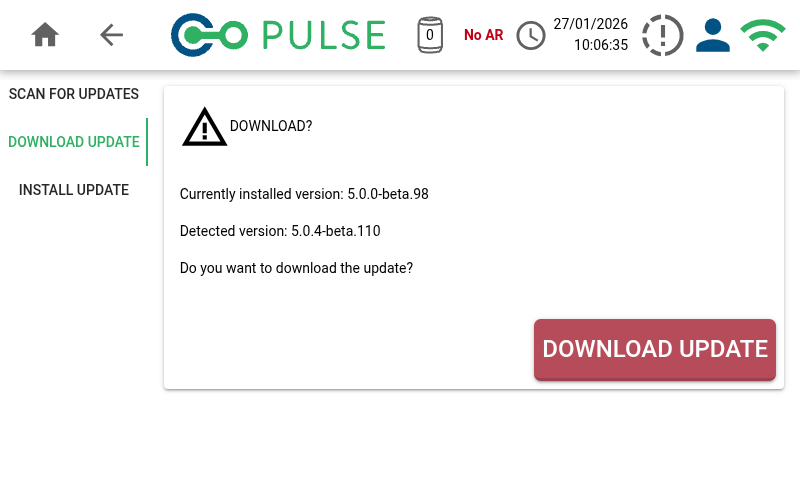 If a new version of the software is available, you will be able to download it by clicking the *Download Update* button.
The time it takes to download the software package will depend on the speed of your Internet connection.
If a new version of the software is available, you will be able to download it by clicking the *Download Update* button.
The time it takes to download the software package will depend on the speed of your Internet connection.
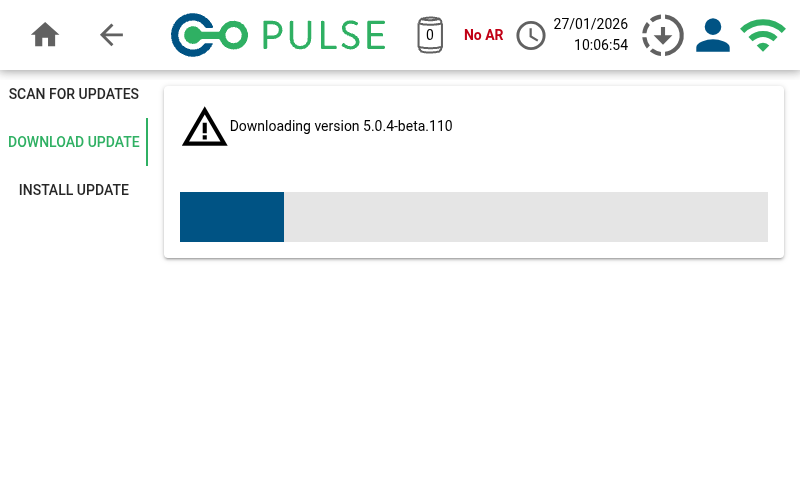 Once downloaded, confirm that you want to install the software update by clicking the *Install Update* button.
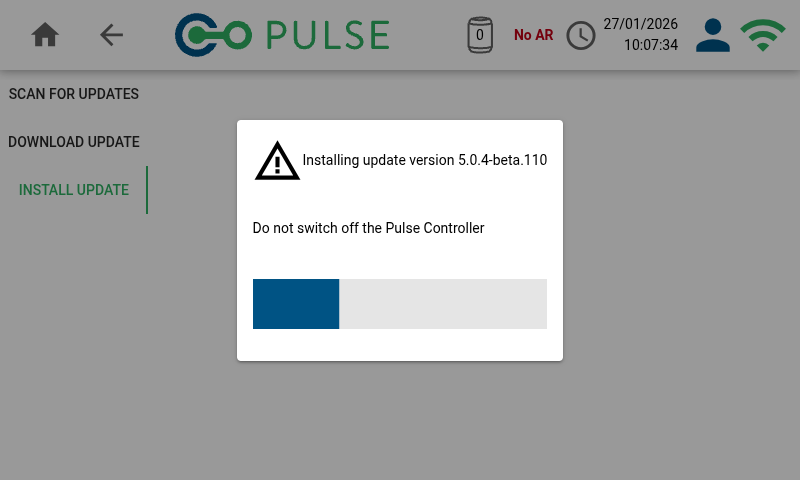
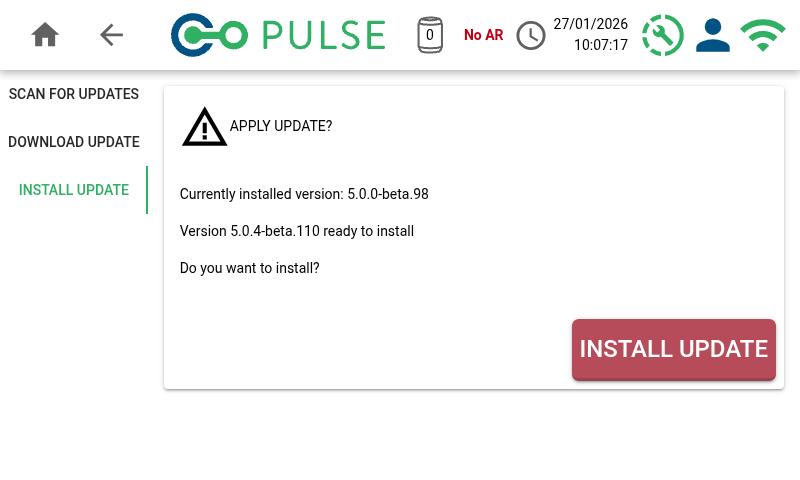 This will begin the installation process - all other controller functionality will be disabled whilst the software is being installed.
Do not unplug the power from your controller whilst the update is being installed. Doing so could irreversibly damage your controller.
This will begin the installation process - all other controller functionality will be disabled whilst the software is being installed.
Do not unplug the power from your controller whilst the update is being installed. Doing so could irreversibly damage your controller.
 After the new software has been successfully installed, the controller will automatically reboot and your updated controller will be ready to use.
### Manually updating via USB flash drive
Download the latest software package from the Software Downloads page of Pulse Online and copy it to a USB flash drive.
Insert the USB flash drive into the controller, then navigate to the Settings screen and click the *Update from USB* button to begin the update process.
After the new software has been successfully installed, the controller will automatically reboot and your updated controller will be ready to use.
### Manually updating via USB flash drive
Download the latest software package from the Software Downloads page of Pulse Online and copy it to a USB flash drive.
Insert the USB flash drive into the controller, then navigate to the Settings screen and click the *Update from USB* button to begin the update process.
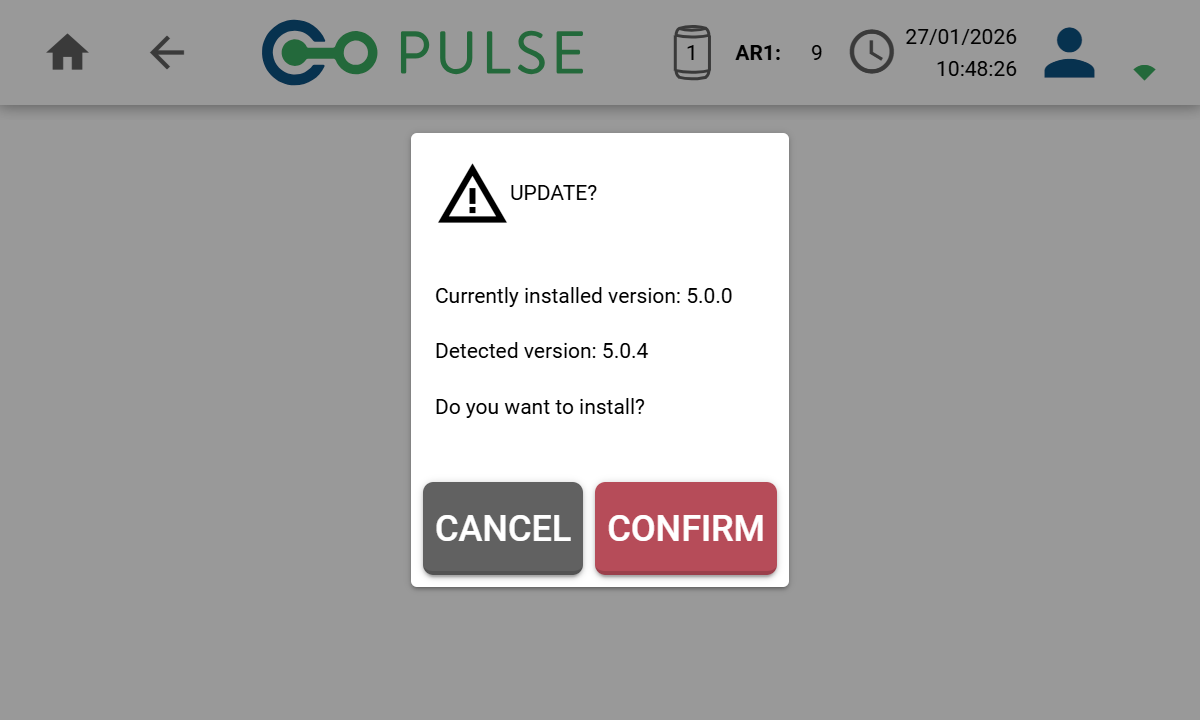 Check that the software version found matches the version that you want to install, and click the *Confirm* button to begin the installation process.
Do not unplug the power from your controller whilst the update is being installed. Doing so could irreversibly damage your controller.
After the new software has been successfully installed, the controller will automatically reboot and your updated controller will be ready to use.
## Air Receiver
The most recent air receiver firmware version is always incorporated into new controller software packages.
After performing a controller software update, you can navigate to the *System status* screen to check if any new firmware updates are available for each of the connected air receivers.
### Updating the air receiver firmware
When an air receiver firmware update is available, the System status screen will show a message saying "Please update the air receiver firmware".
A *Download* button (circled below) will also appear against each air receiver that is eligible for an update.
Check that the software version found matches the version that you want to install, and click the *Confirm* button to begin the installation process.
Do not unplug the power from your controller whilst the update is being installed. Doing so could irreversibly damage your controller.
After the new software has been successfully installed, the controller will automatically reboot and your updated controller will be ready to use.
## Air Receiver
The most recent air receiver firmware version is always incorporated into new controller software packages.
After performing a controller software update, you can navigate to the *System status* screen to check if any new firmware updates are available for each of the connected air receivers.
### Updating the air receiver firmware
When an air receiver firmware update is available, the System status screen will show a message saying "Please update the air receiver firmware".
A *Download* button (circled below) will also appear against each air receiver that is eligible for an update.
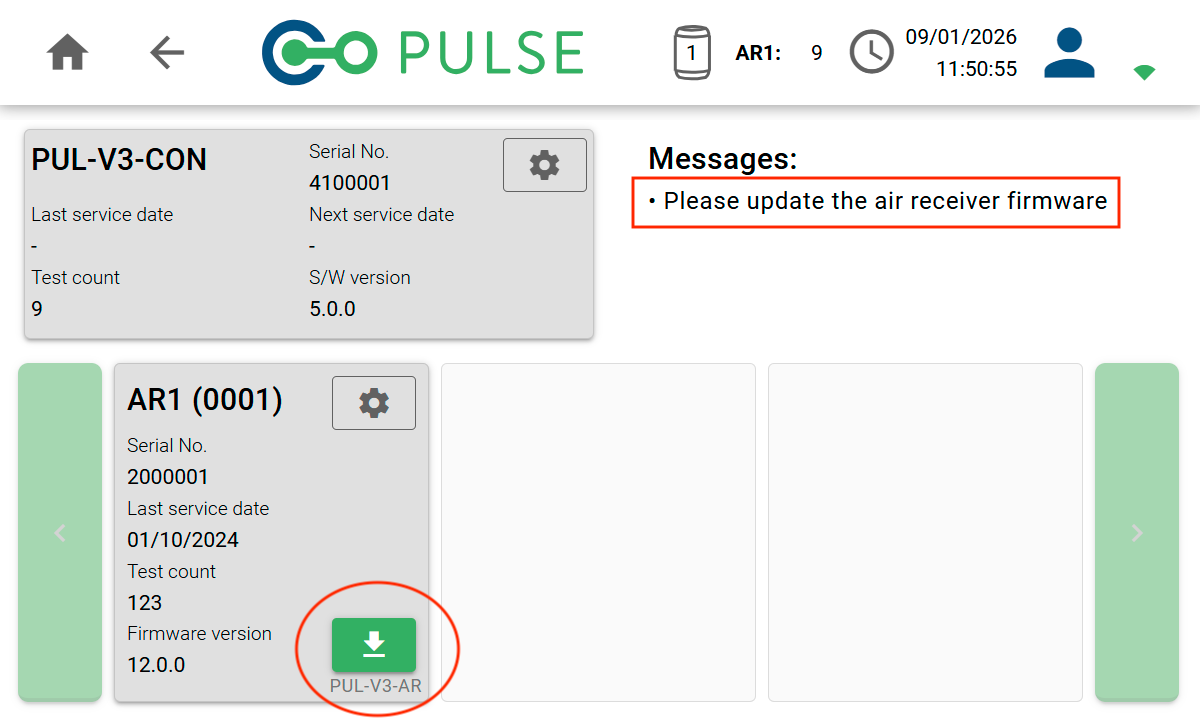 Clicking the *Download* button will install the latest firmware on to the air receiver.