> ## Documentation Index
> Fetch the complete documentation index at: https://docs.pulseairtest.com/llms.txt
> Use this file to discover all available pages before exploring further.
# Software downloads
Keep your Pulse controller software up-to-date by downloading update packages from the Software Download page of Pulse Online.
Software updates will include bug fixes and new features to improve your Pulse testing experience.
Download the latest software for your Pulse controller.
## Software update alert
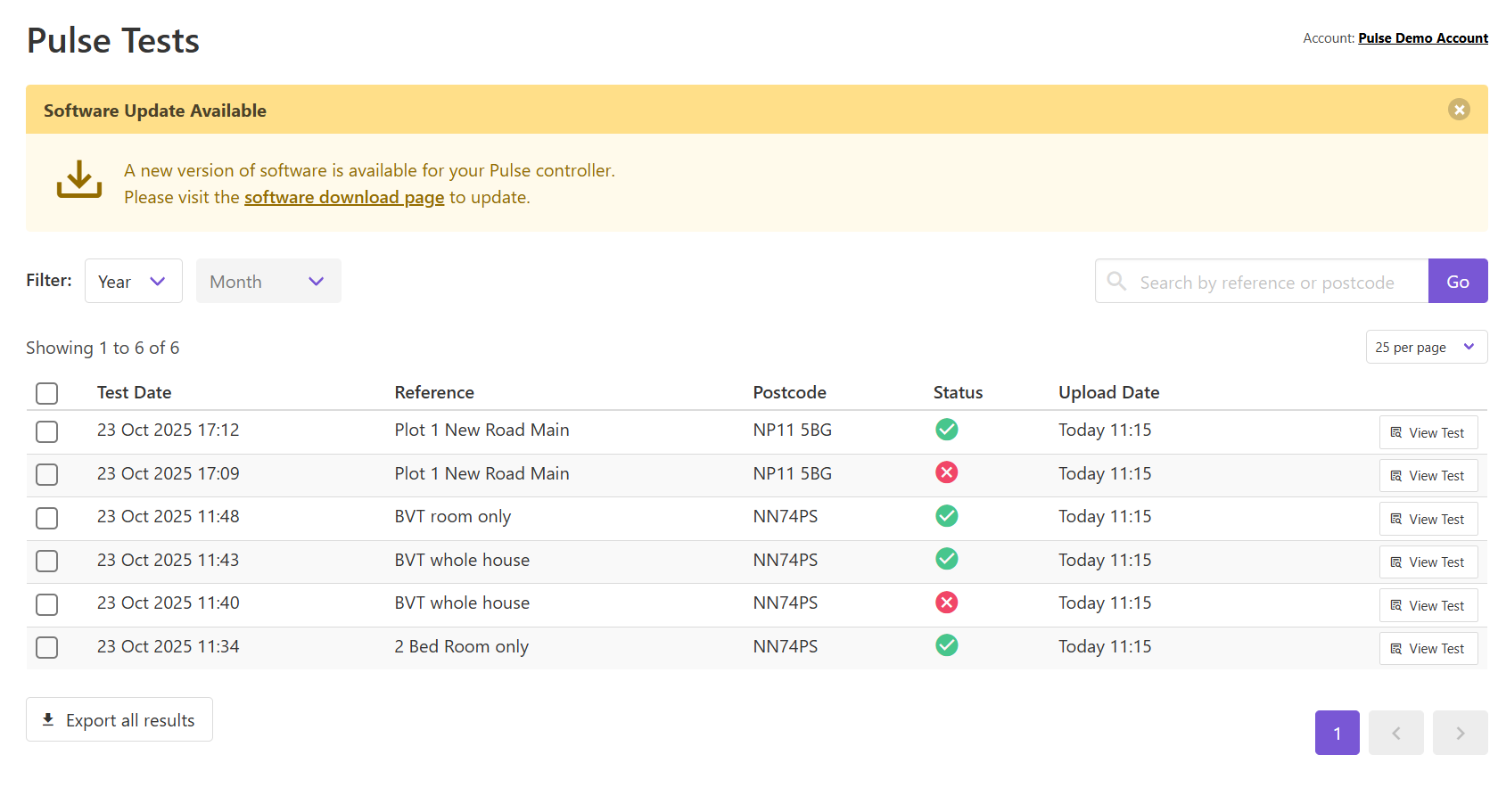
Pulse Online will alert you if it detects that a new software update is available for your controller. It determines this by comparing the software version used in the last test file uploaded to the latest software version available.
 ## Downloading the latest software
If you have multiple controllers or air receivers, you can always download the latest software package from the Software Download page.
### Current V5 software update process
If you have a Pulse 3.0 controller or a Pulse 2.0 controller running V5 software, follow the instructions below to update to the latest software package:
* On the Pulse Online website, go to the *Tools > Software Downloads* page
* Select “Pulse 3.0” or “Pulse 2.0” and download the V5 software package using the *Download* button
* Copy the downloaded file into the root folder of an empty USB flash drive
* Follow the manually updating via USB flash drive instructions to complete installation
### Older V4 software update process
If you have an older Pulse 2.0 controller that is running V4 software, follow the instructions below to update to the latest V4 software package:
## Downloading the latest software
If you have multiple controllers or air receivers, you can always download the latest software package from the Software Download page.
### Current V5 software update process
If you have a Pulse 3.0 controller or a Pulse 2.0 controller running V5 software, follow the instructions below to update to the latest software package:
* On the Pulse Online website, go to the *Tools > Software Downloads* page
* Select “Pulse 3.0” or “Pulse 2.0” and download the V5 software package using the *Download* button
* Copy the downloaded file into the root folder of an empty USB flash drive
* Follow the manually updating via USB flash drive instructions to complete installation
### Older V4 software update process
If you have an older Pulse 2.0 controller that is running V4 software, follow the instructions below to update to the latest V4 software package:
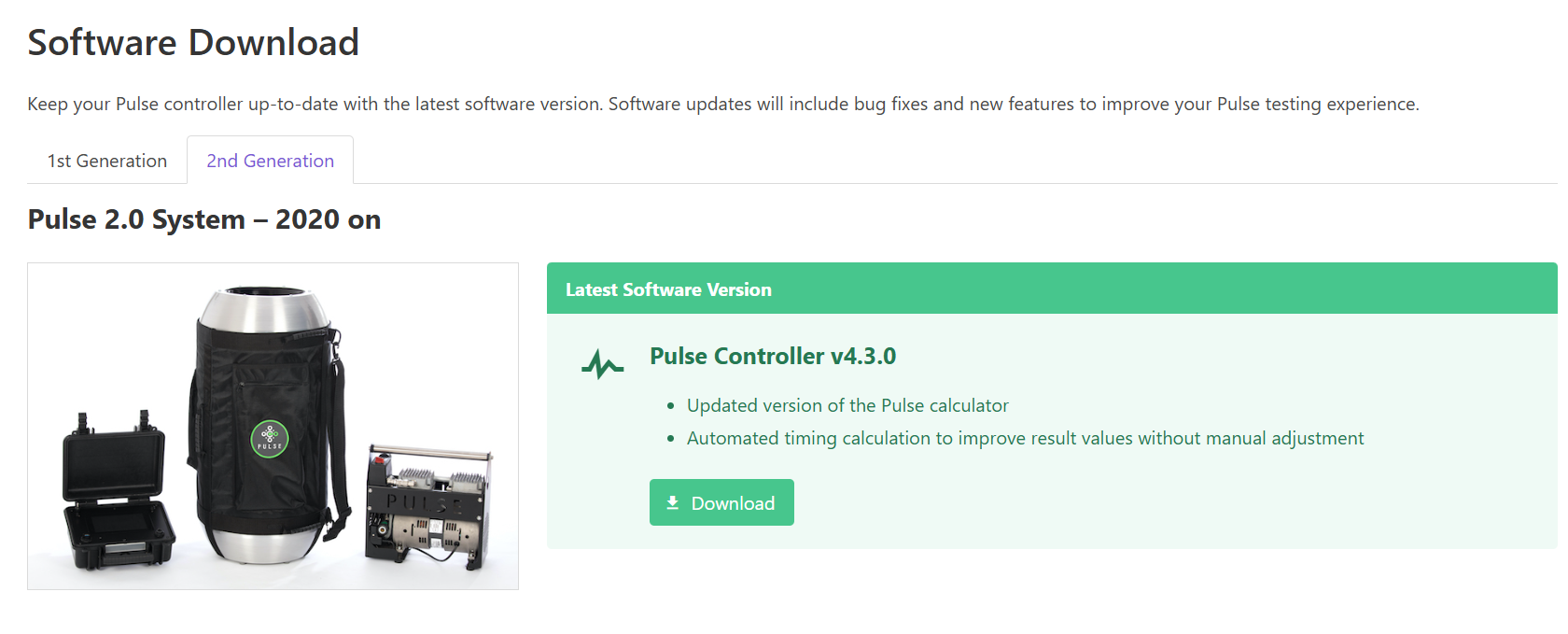 * On the Pulse Online website, go to the *Tools > Software Downloads* page
* Select "Pulse 2.0" and download the V4 software package using the *Download* button
* Copy the downloaded file into the root folder of an empty USB flash drive
* Turn on your controller and wait until powered up
* Insert the USB flash drive into the USB port on top of the controller and select *Software* from the main menu
* Verify that the software version matches the file downloaded and click the *Install* button
* The software update will begin and the system will reboot once installation is complete
Your Pulse 2.0 controller will be upgraded to the latest V5 software the next time it comes in for a service.
* On the Pulse Online website, go to the *Tools > Software Downloads* page
* Select "Pulse 2.0" and download the V4 software package using the *Download* button
* Copy the downloaded file into the root folder of an empty USB flash drive
* Turn on your controller and wait until powered up
* Insert the USB flash drive into the USB port on top of the controller and select *Software* from the main menu
* Verify that the software version matches the file downloaded and click the *Install* button
* The software update will begin and the system will reboot once installation is complete
Your Pulse 2.0 controller will be upgraded to the latest V5 software the next time it comes in for a service.